Send from a Salesforce record
Send an order form or any template from a Quote, Opportunity, Order, Contract or Account.
2 sections · 3 screenshots
Send with Tally Sign
- Open the record, for example a Quote.
- Choose Send with Tally Sign. You can also choose Send for signature in the record's Tally Sign tab.
- Pick the Template. Templates linked to this object are listed first.
- Check Recipients. Each shows where it came from. Choose Change to pick someone else.
- If anything is listed under Missing values, fill it in. This only changes the document, not Salesforce.
- Check the Subject and add a Message.
- Choose Send, or Save draft to finish it later.
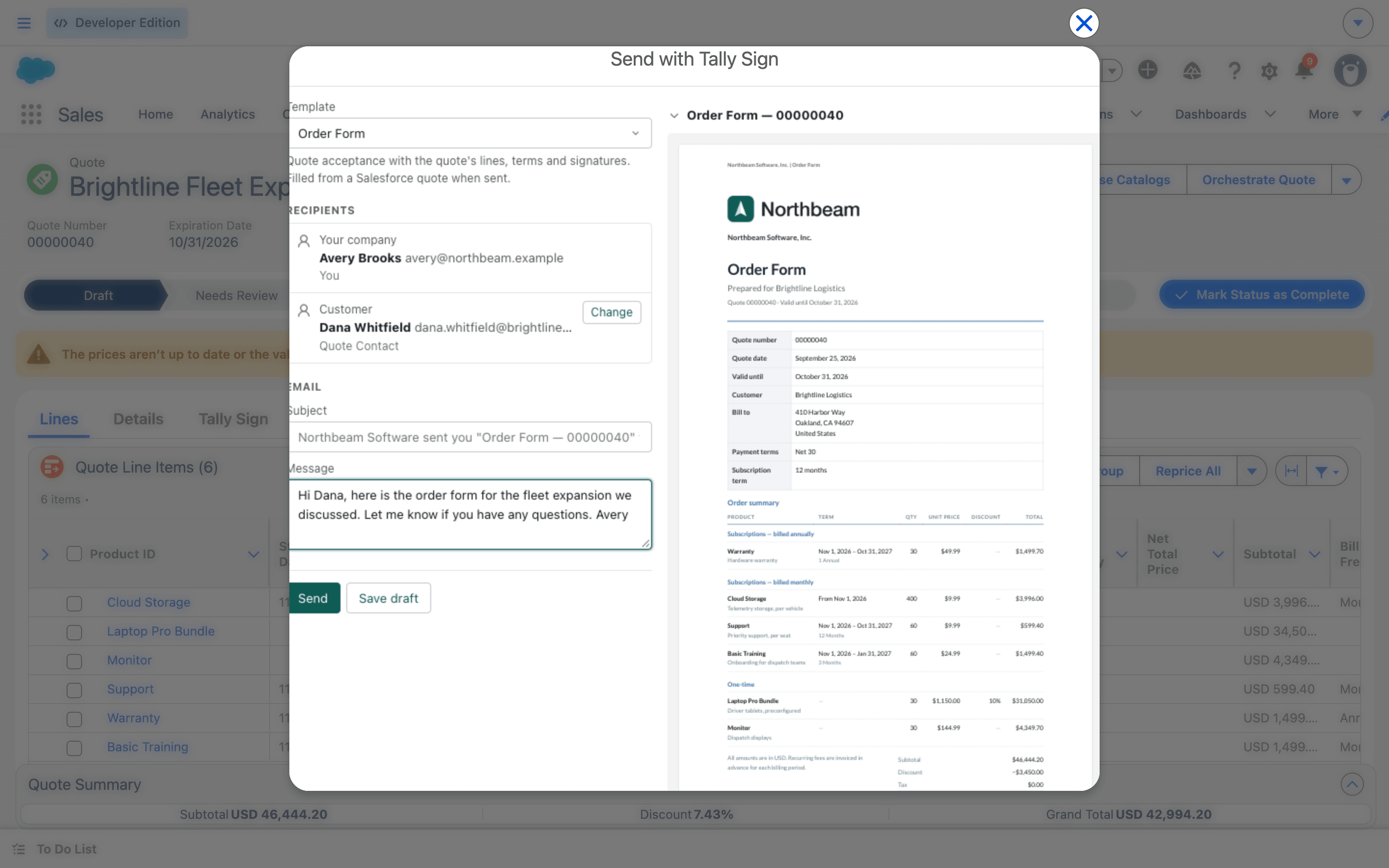
Once sent, the envelope appears in the record's Tally Sign tab. With the default Order Form setup, the quote's status changes to Presented.
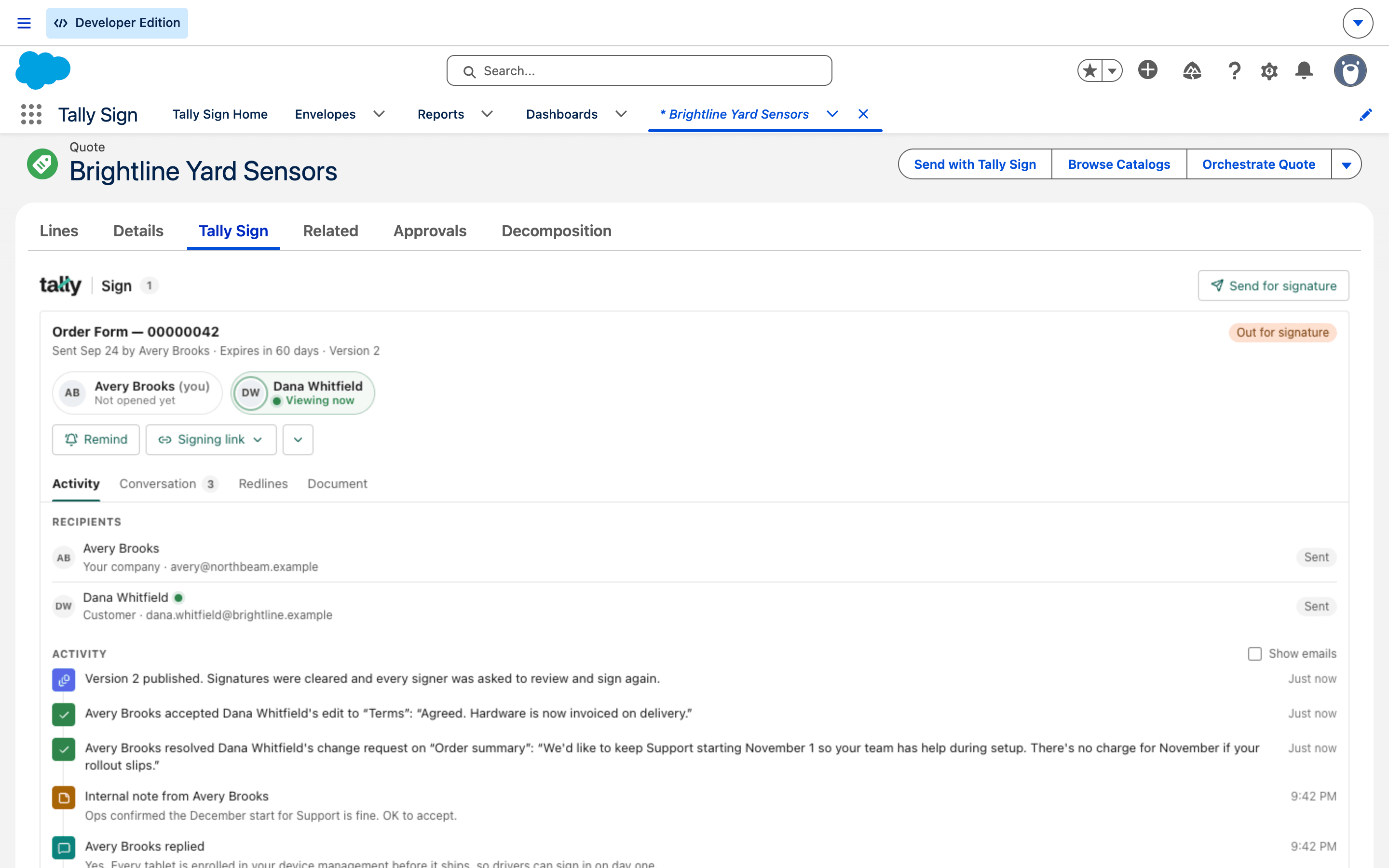
The Tally Sign tab on the record
The tab shows every document sent from the record. For each one:
- A signer row with each person's progress, for example Opened 9:06 PM or Viewing now.
- Remind re-sends the email to people who haven't signed.
- Signing link copies a person's link, or lets you Sign in person on this device.
- The menu has Open in Tally Sign, Download signed PDF, Open order, Open contract, and Update from record for drafts.
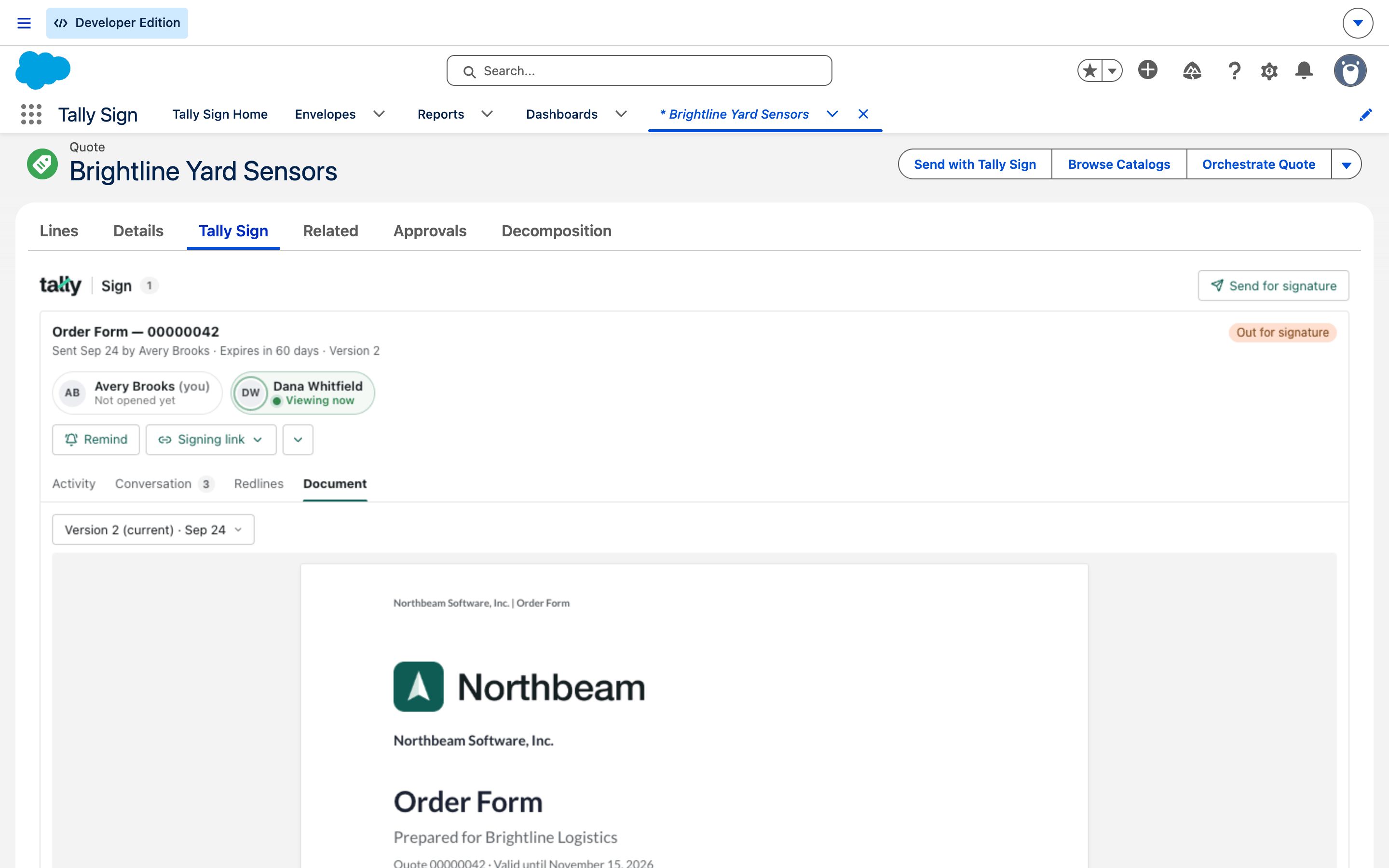
- Tabs: Activity, Conversation, Redlines and Document.
On the website: Any object·Pricing