Seats
One seat per person, across the web app and Salesforce. Request a seat, the 7-day rule and automatic assignment.
6 sections · 2 screenshots
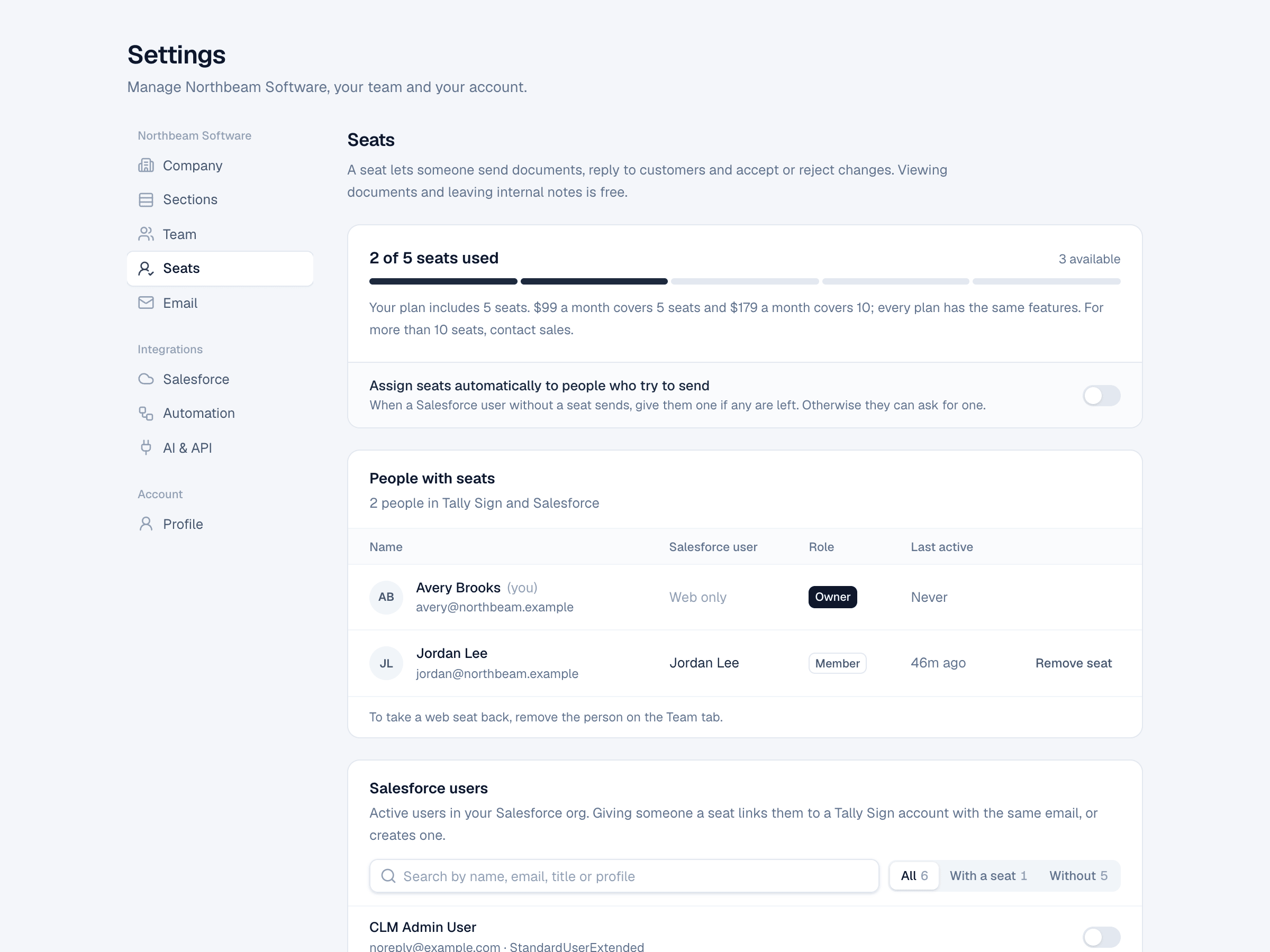
A seat lets someone send documents, reply to customers and accept or reject changes. Viewing documents and leaving internal notes is free. Seats are people: each person holds one seat, whether they work in Tally Sign, in Salesforce or both.
Seats at a glance
Open Settings → Seats. The meter shows how many seats are used and how many are left.
| Plan | Price |
|---|---|
| Tally Sign | $20 per user a month |
| Tally Sign for Salesforce | $200 a month for every 5 users |
Both plans have the same features. The Salesforce plan adds the Salesforce and Revenue Cloud integration.
Who holds a seat
- Everyone on your Team in Tally Sign holds a seat.
- Salesforce users hold a seat once you give them one. Tally Sign links them to an account with the same email, or creates one.
- A person who uses both the web app and Salesforce holds one seat, not two.
Give a seat to a Salesforce user
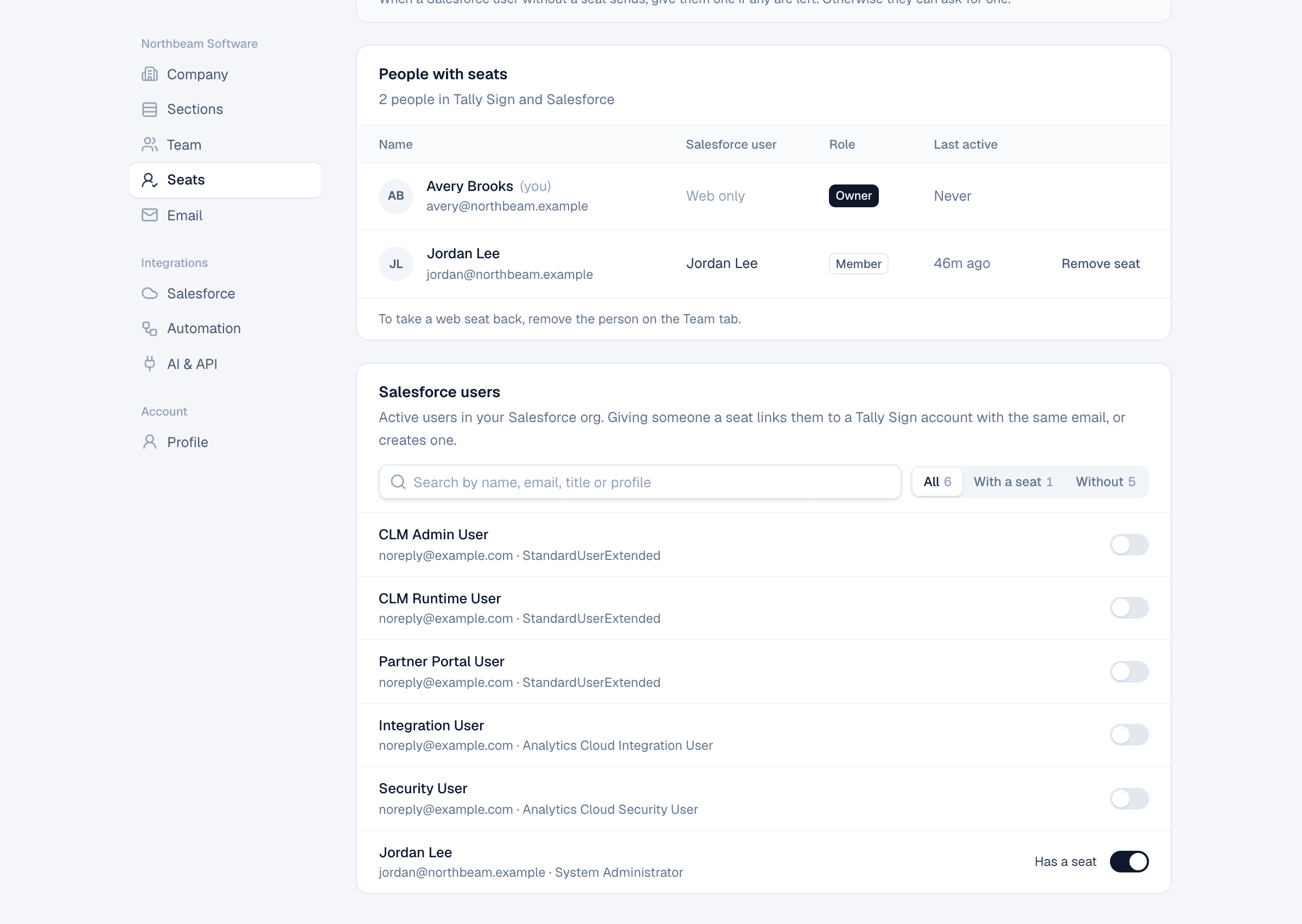
- In Settings → Seats, scroll to Salesforce users. The list shows active users in your org.
- Search by name, email, title or profile.
- Turn on the switch next to the person. It reads Has a seat.
Request a seat
When someone without a seat tries to send from Salesforce, the component shows Needs a Tally Sign seat with a Request a seat button. Their admins are asked, and the request appears under Seat requests in Settings → Seats, with Approve and Decline.
Assign seats automatically
Turn on Assign seats automatically to people who try to send. A Salesforce user without a seat gets one the first time they send, if any are left. When none are left, they can still request one.
Remove a seat and the 7-day rule
- In People with seats, choose Remove seat next to the person.
- Confirm.
They can still view documents and leave internal notes, but can't send. The seat stays counted for 7 days before it can go to someone else. To take a web seat back, remove the person on the Team tab.
Users deactivated in Salesforce lose their seat automatically.
On the website: Pricing