Set up your company
Add your logo, brand color and legal details so every document and email looks like it came from you.
3 sections · 2 screenshots
Tally Sign puts your company on everything it sends: documents, signing pages, emails and the signed PDF. The product name only appears as the platform. Setting this up takes about five minutes.
Company details
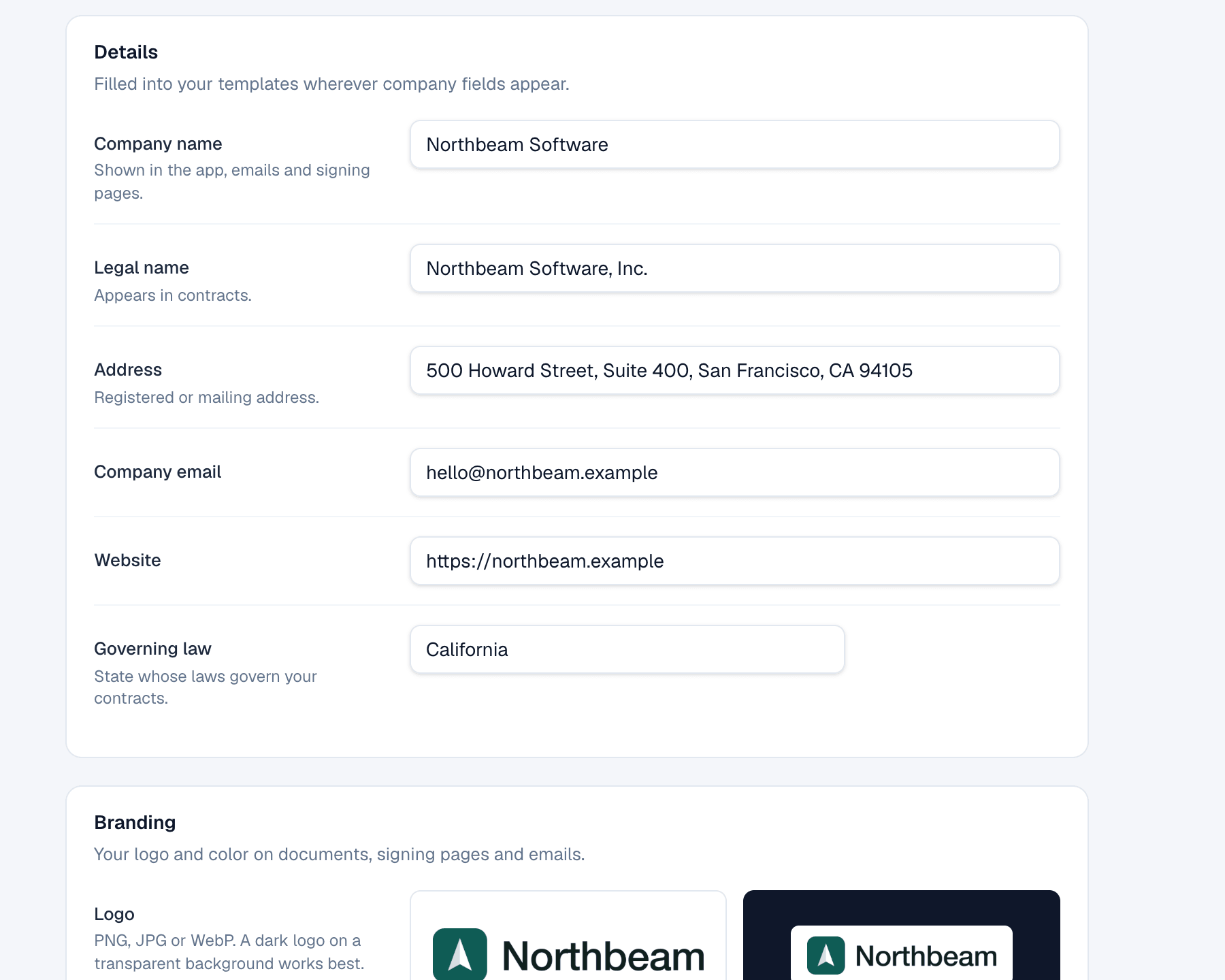
After you create an account, Tally Sign opens Settings with a short setup checklist. You can come back to it any time from Settings → Company.
- Open Settings in the sidebar and choose Company.
- Enter the Company name. It's shown in the app, in emails and on signing pages.
- Enter the Legal name, for example
Northbeam Software, Inc.. Templates use it wherever the contract names your company. - Enter the Address, Company email and Website.
- Set Governing law to the state whose laws govern your contracts.
- Choose Save changes.
Logo and brand color
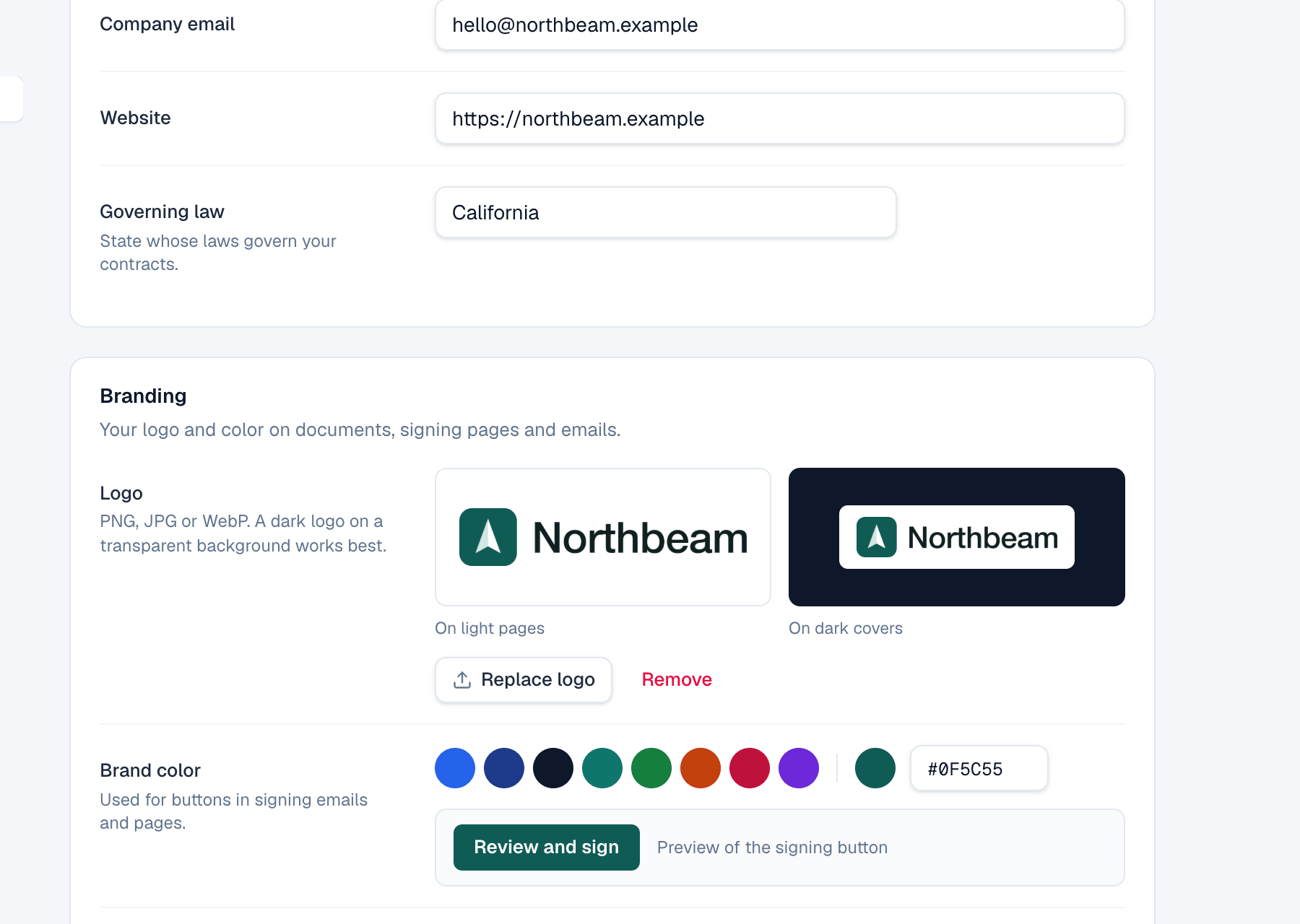
- In Branding, choose Upload logo. PNG, JPG or WebP work. A dark logo on a transparent background works best.
- Check both previews: On light pages and On dark covers.
- Pick a Brand color from the presets, or enter a hex value such as
#0f5c55. - Look at the Review and sign button preview. If the color is too light for white text, Tally Sign warns you.
- Choose Save changes.
Sections and teammates
Sections split your documents into areas, for example Business and Rentals. Each section has its own documents and templates, and can sign as a specific person. Most companies keep the single default section.
To invite teammates, open Settings → Team. See Team and roles.
On the website: No CRM needed·Pricing