Send a document and track it
Send for signature, see who opened and signed it, remind people and download the signed PDF.
3 sections · 4 screenshots
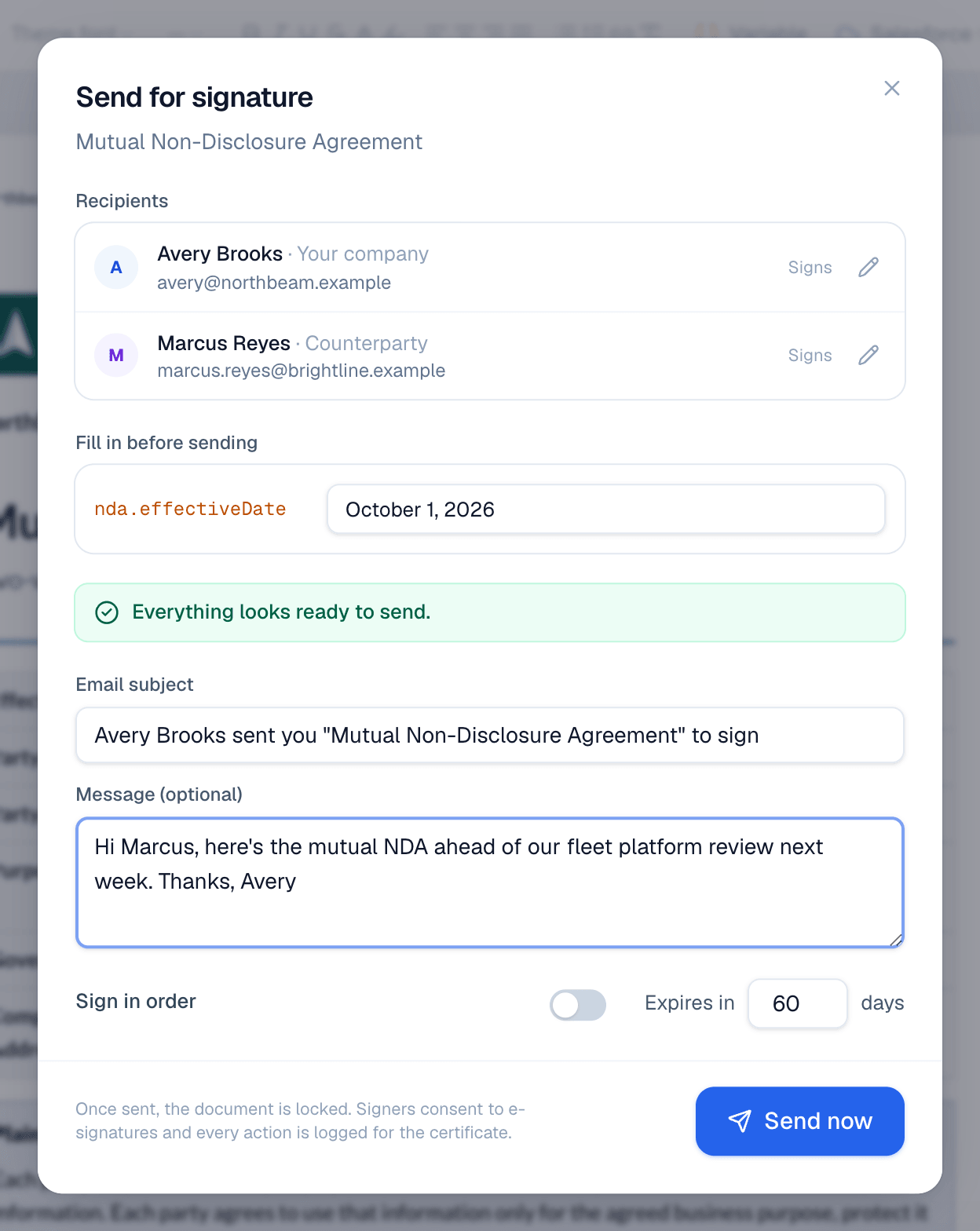
Send for signature
- Open a template and choose Use template, or choose New document in the sidebar.
- In Signers, enter each person's name and email.
- Fill in anything in Fill-ins that's still empty.
- Choose Send.
- Check the recipients and the Email subject. Add an optional Message.
- Turn on Sign in order if people must sign one after another. Change Expires in if 60 days is too long or short.
- Choose Send now.
Track progress
After sending, the document page shows its progress on the right. Each recipient moves through Sent, Viewed and Signed.
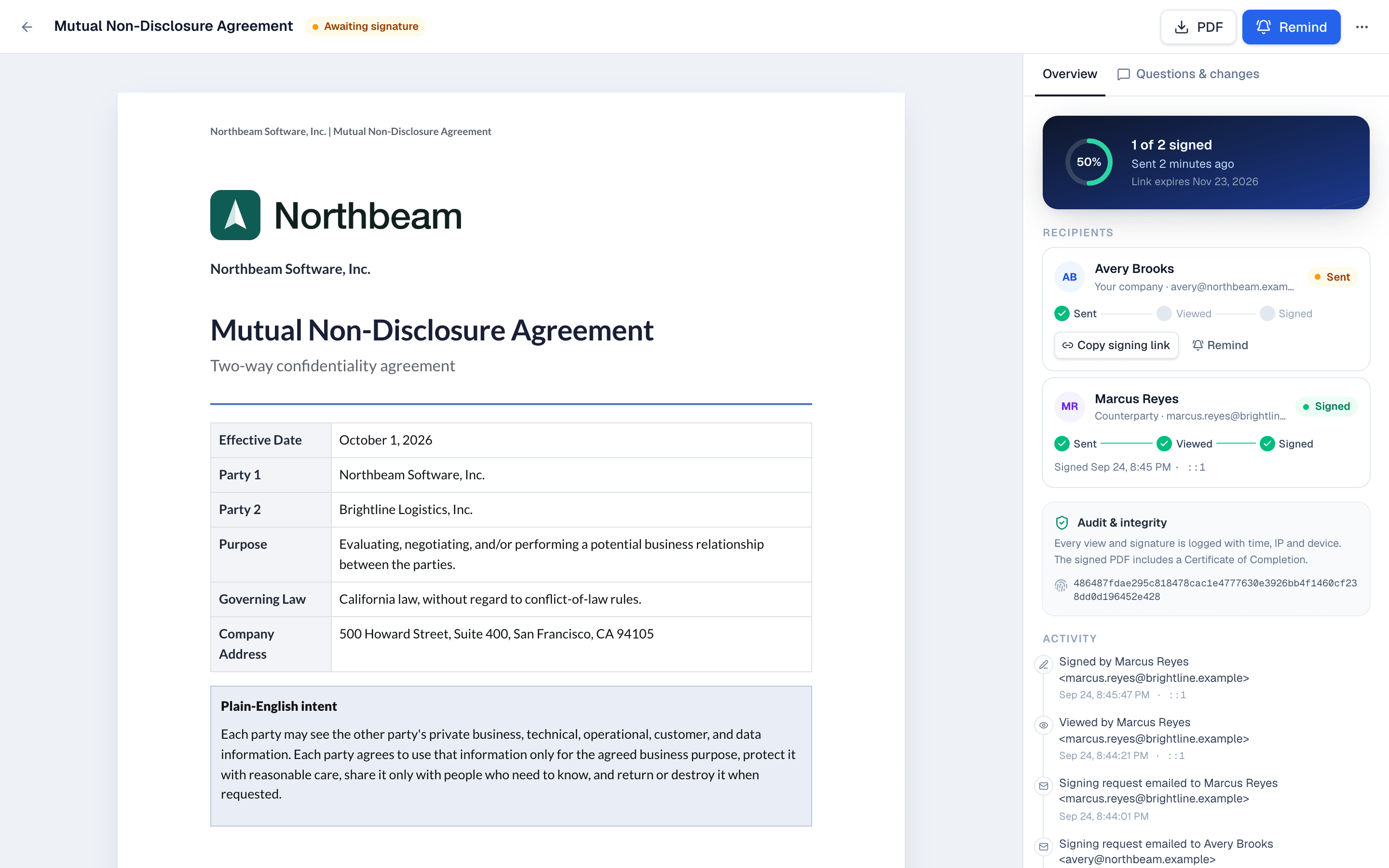
- Copy signing link gives you a person's link, for example to send it in a chat.
- Remind emails signers who haven't signed yet.
- Activity lists every event with time, IP address and device.
- The Questions & changes tab holds the conversation with the customer.
When everyone has signed
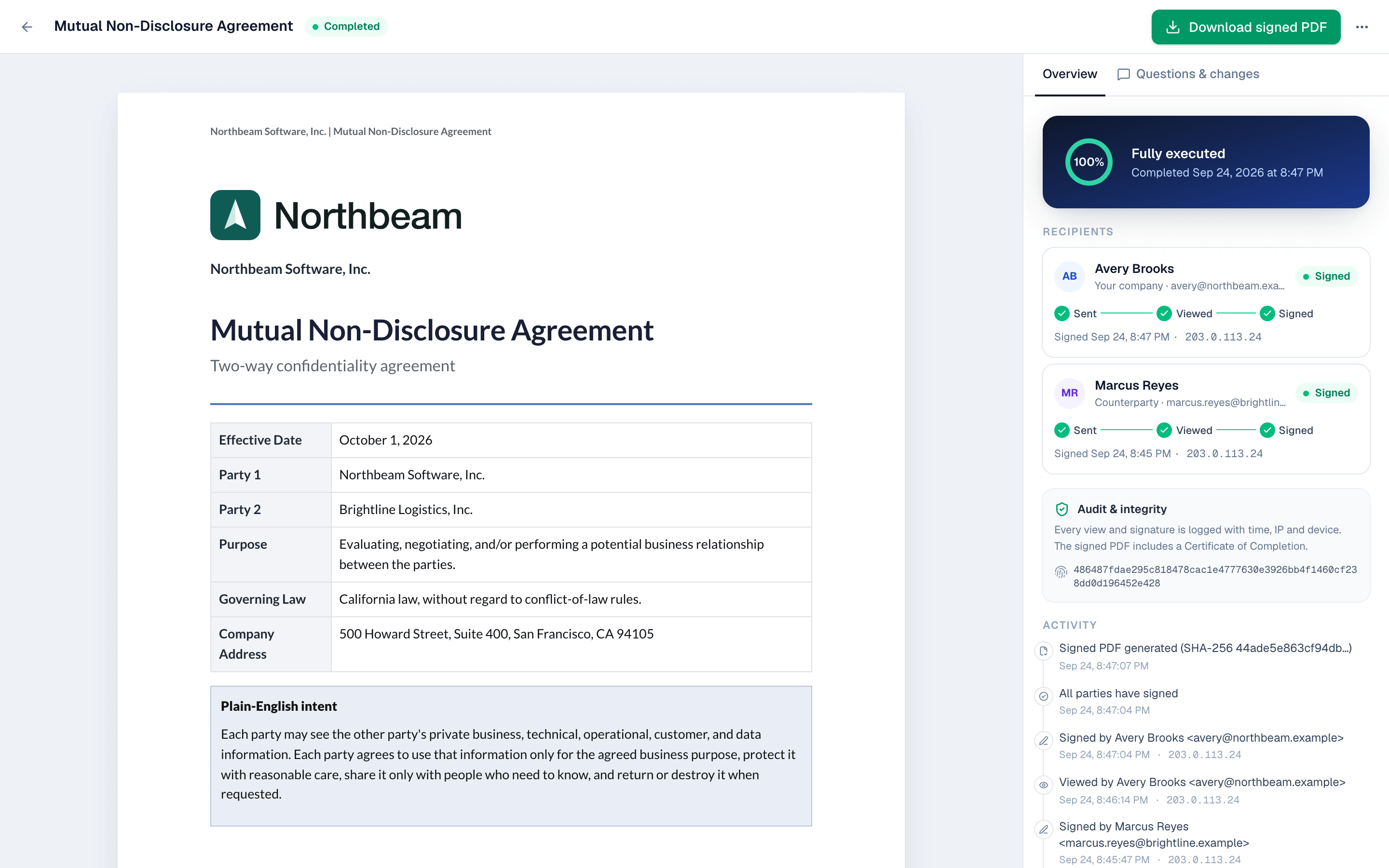
The status changes to Completed and everyone gets the signed PDF by email. It ends with a Certificate of Completion that records each view and signature.
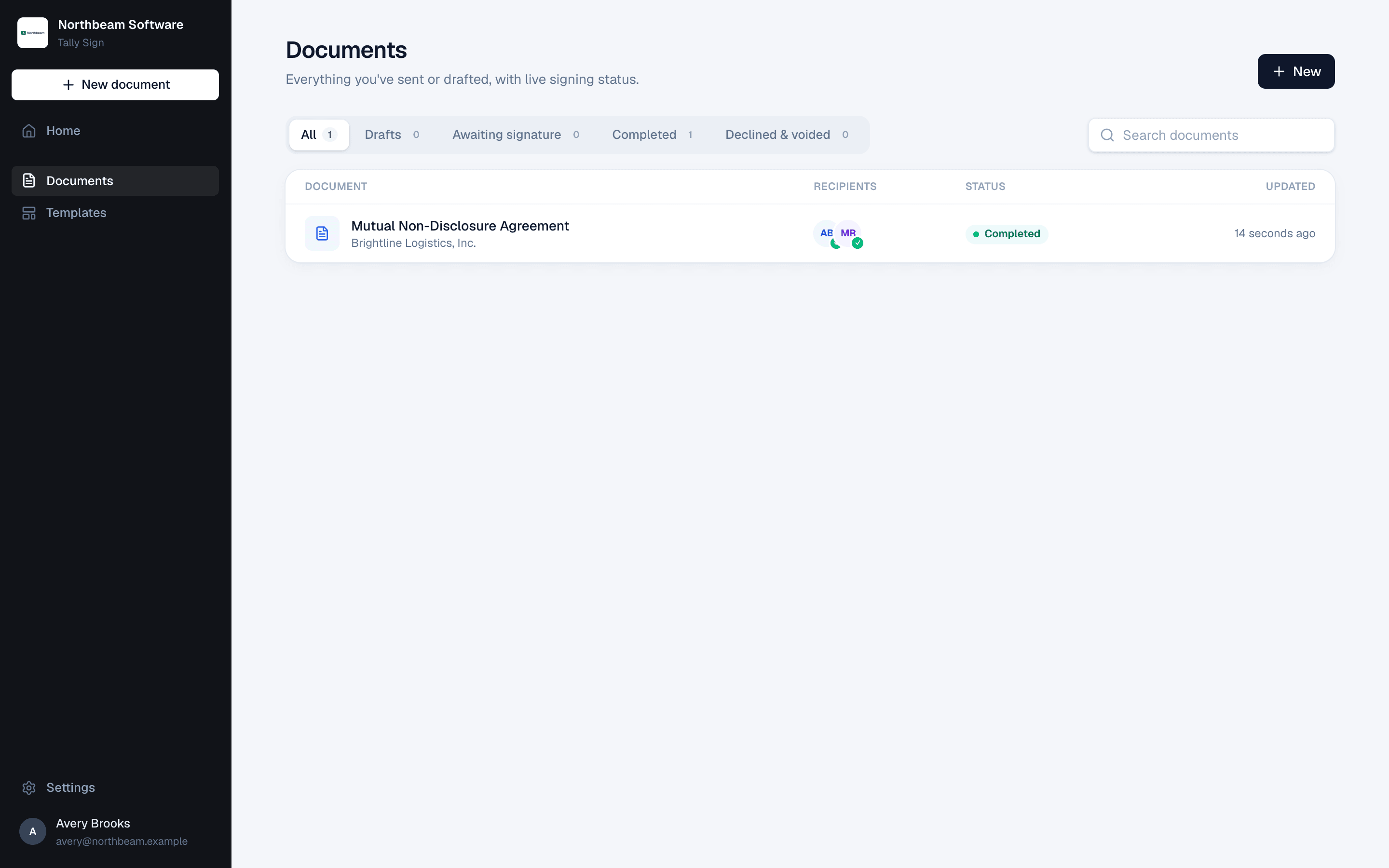
The Documents list shows everything you've sent or drafted, with live signing status. Filter by Drafts, Awaiting signature, Completed or Declined & voided.
On the website: No CRM needed·Pricing