Suggested edits, change requests and versions
Customers propose wording or ask for a change; you accept, edit or decline, and Tally Sign publishes a new version.
4 sections · 9 screenshots
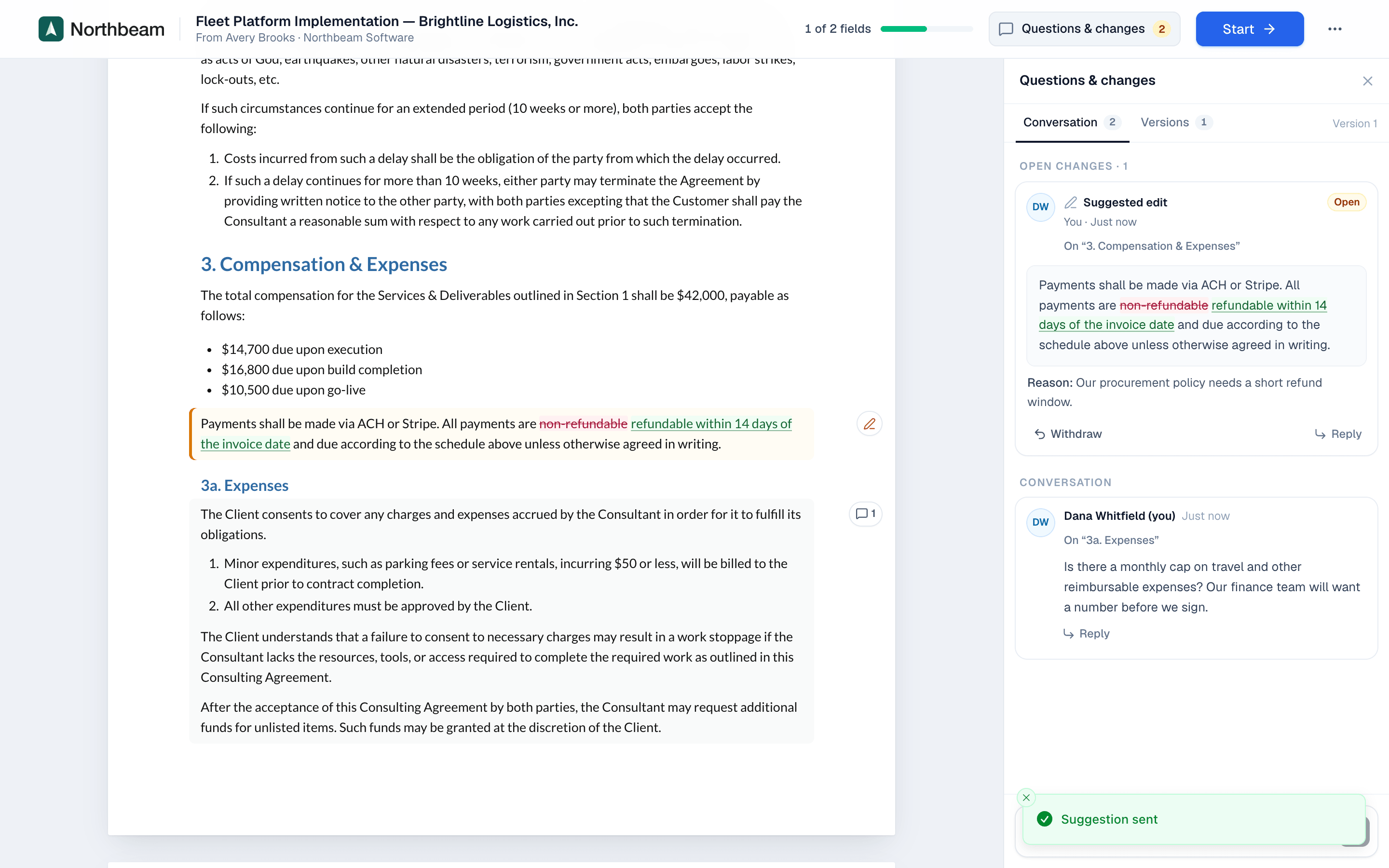
The customer suggests an edit
- The customer clicks a paragraph and chooses Suggest edit.
- They edit the text in place. Their changes are marked up as they type.
- They add an optional reason and choose Send suggestion.

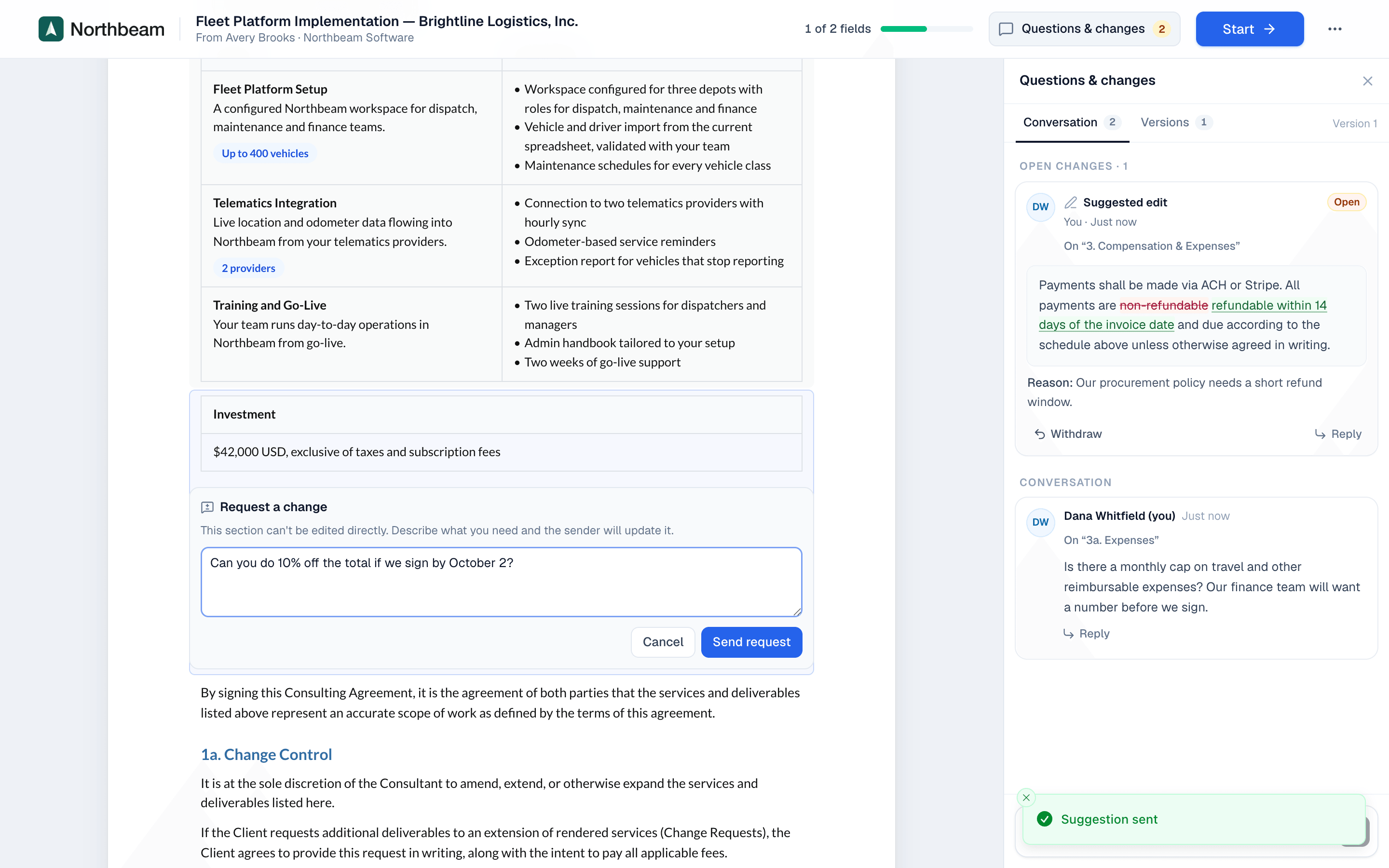
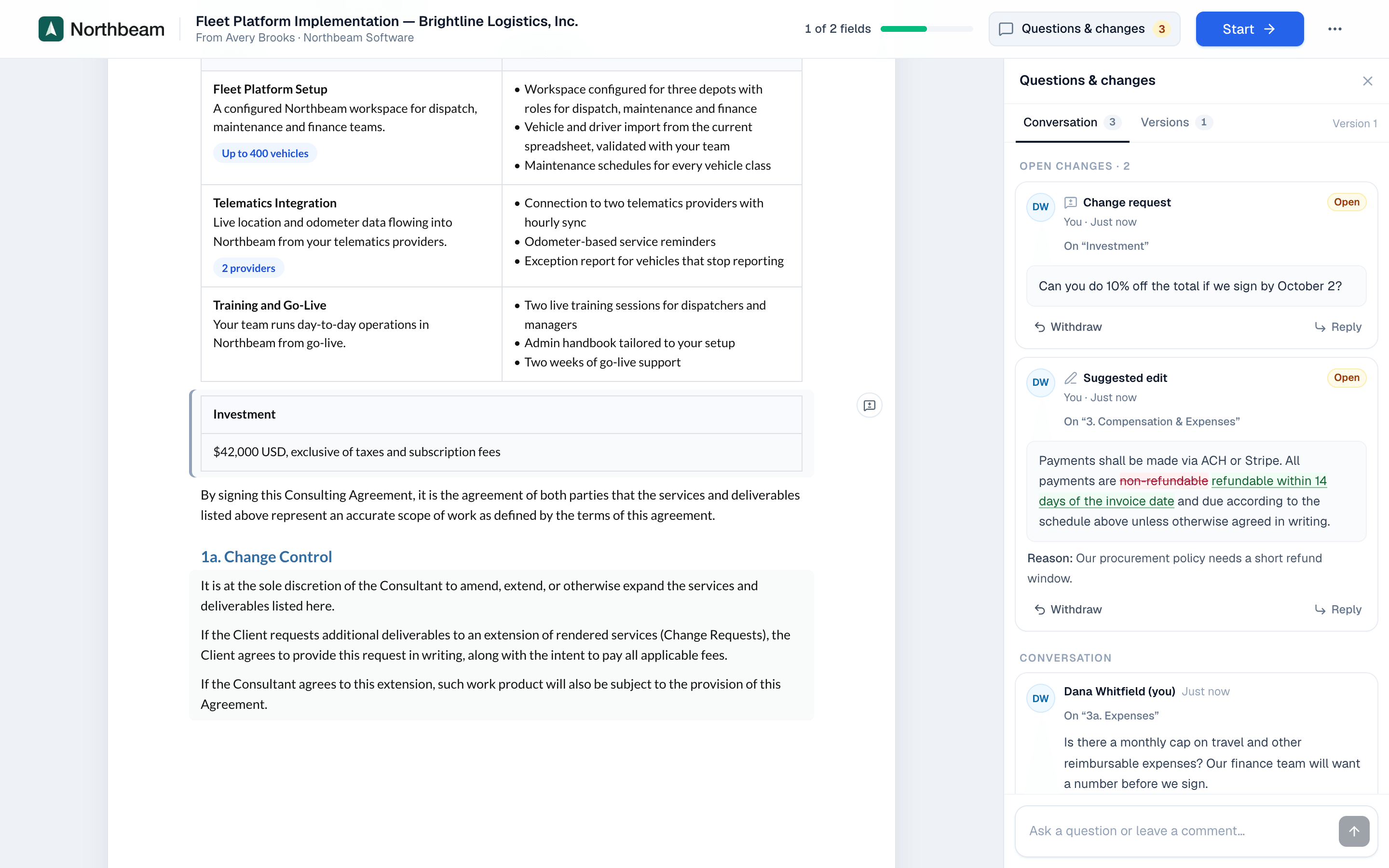
The customer requests a change
Some sections can't be edited directly, such as pricing. There the toolbar shows Request change instead. The customer describes what they need and chooses Send request. See Locked sections.
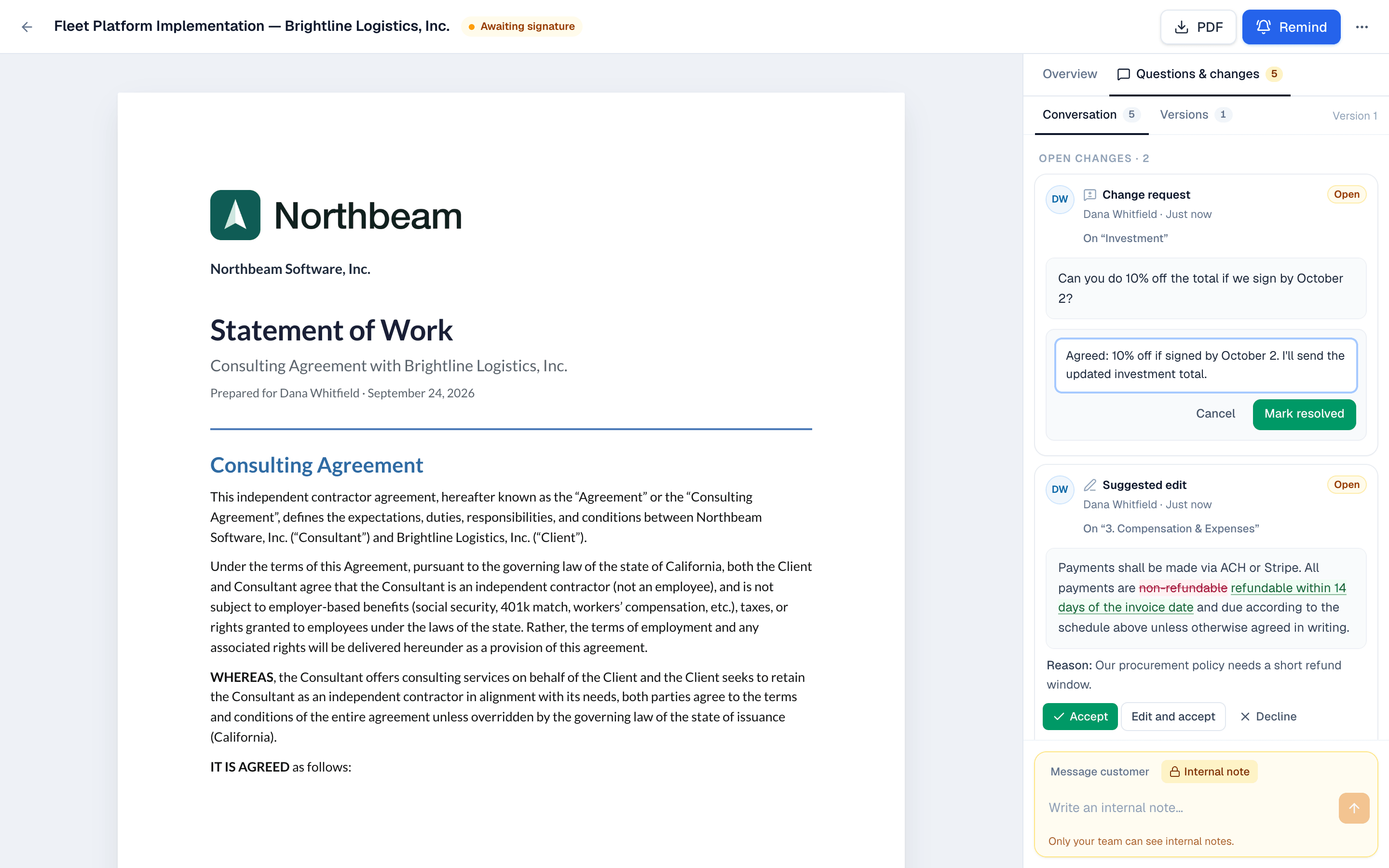
Decide on changes
| Card | Your options |
|---|---|
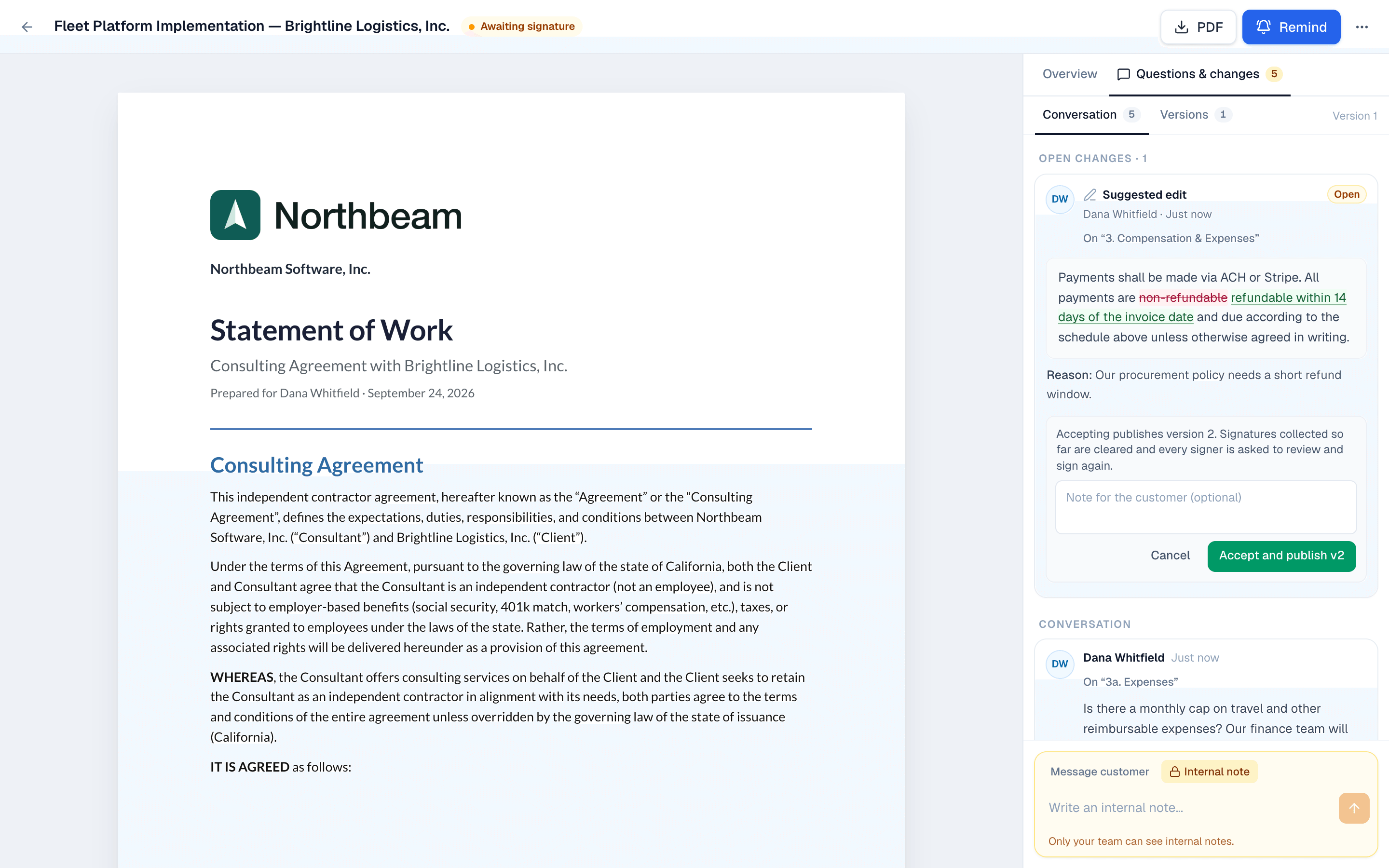
| Suggested edit | Accept, Edit and accept (change the wording first), Decline |
| Change request | Resolve (after you've made the change yourself), Decline |
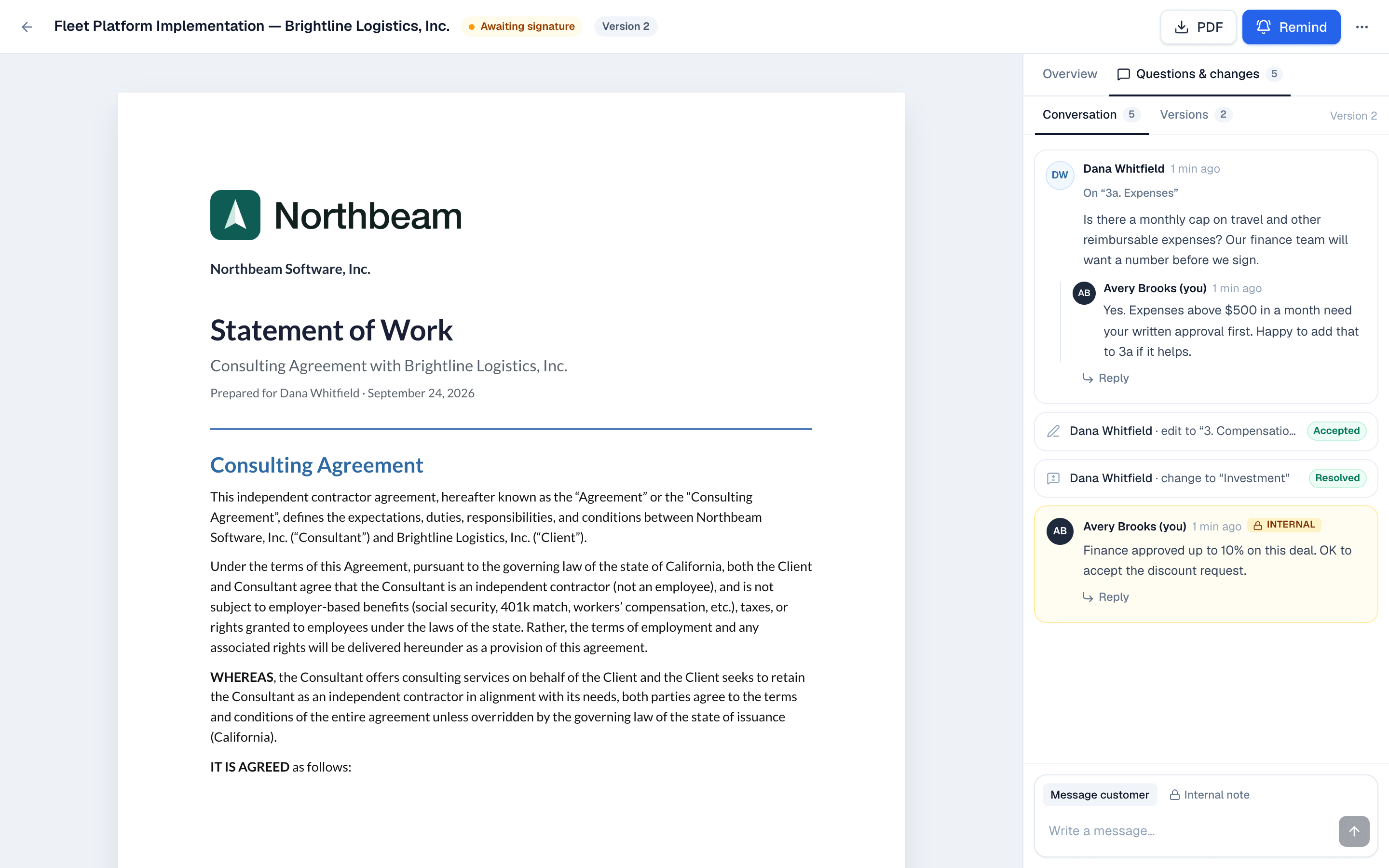
Each decision can carry an optional note for the customer. When you decline, the customer sees your reason.
New versions
Accepting an edit publishes the next version of the document. Signatures collected so far are cleared and every signer is asked to review and sign again. The customer's open signing page shows that a new version is ready.
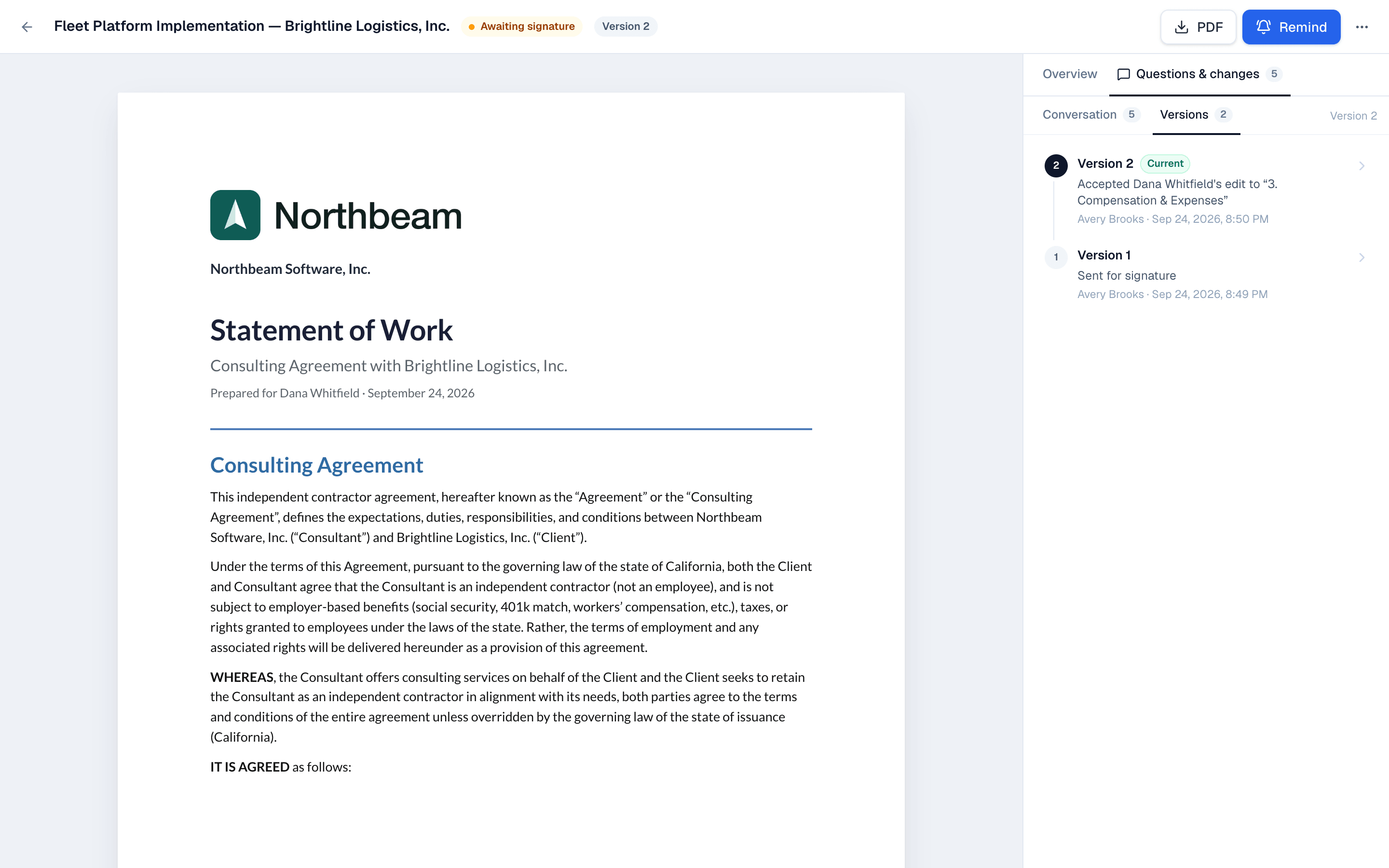
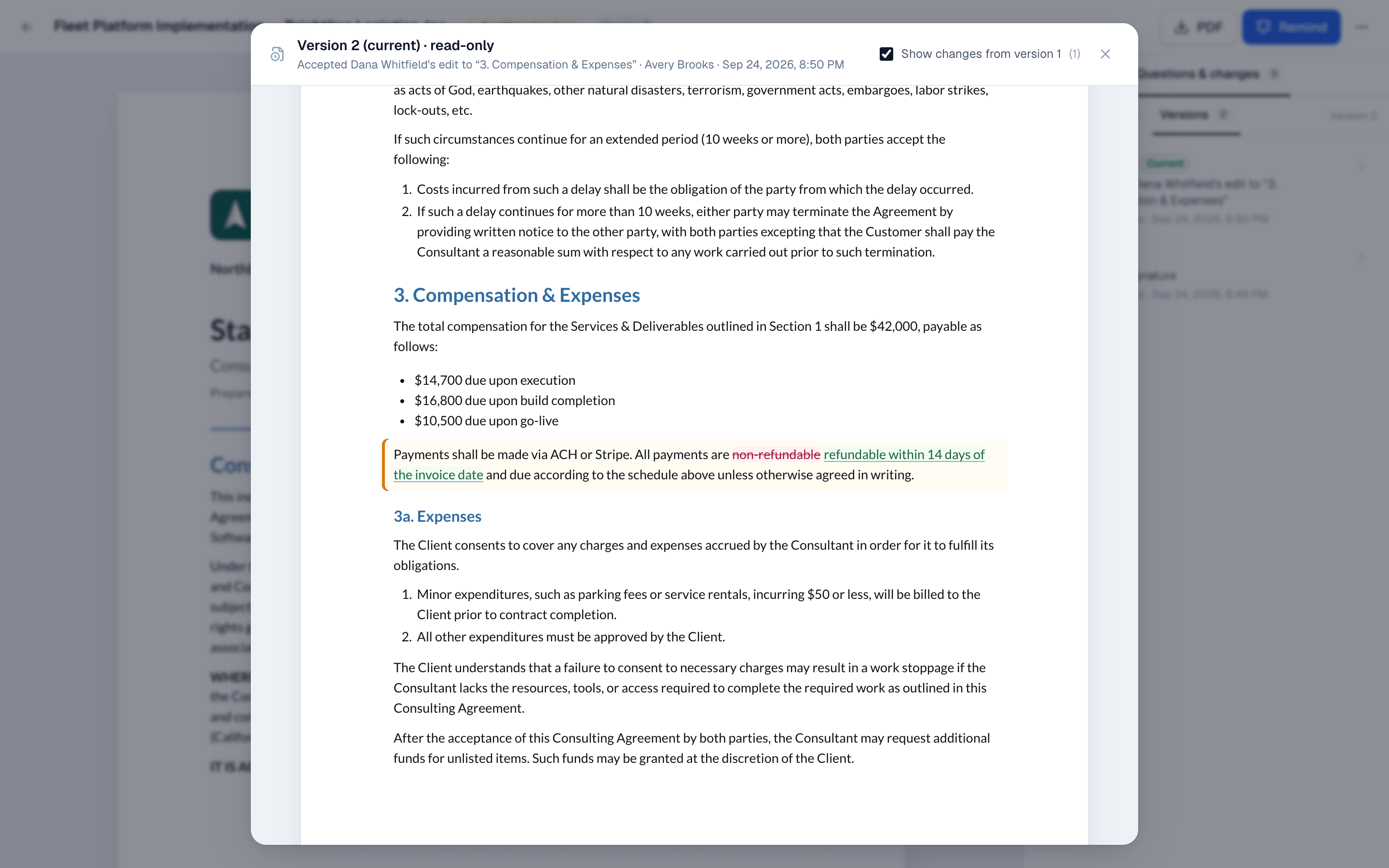
The Versions tab lists each version with what changed. Click a version to see its full text with the changes marked.
On the website: No CRM needed·Pricing