Use Tally Sign from Claude or ChatGPT
Connect your AI app once, then ask for NDAs, SOWs or the order form for a Salesforce quote in plain English.
6 sections · 3 screenshots
Tally Sign has a built-in MCP server, the standard way AI apps use other tools. Once connected, you can ask for documents the way you'd ask a coworker. The AI drafts them in Tally Sign, gives you a link to check, and always asks before sending anything for signature.
How it works
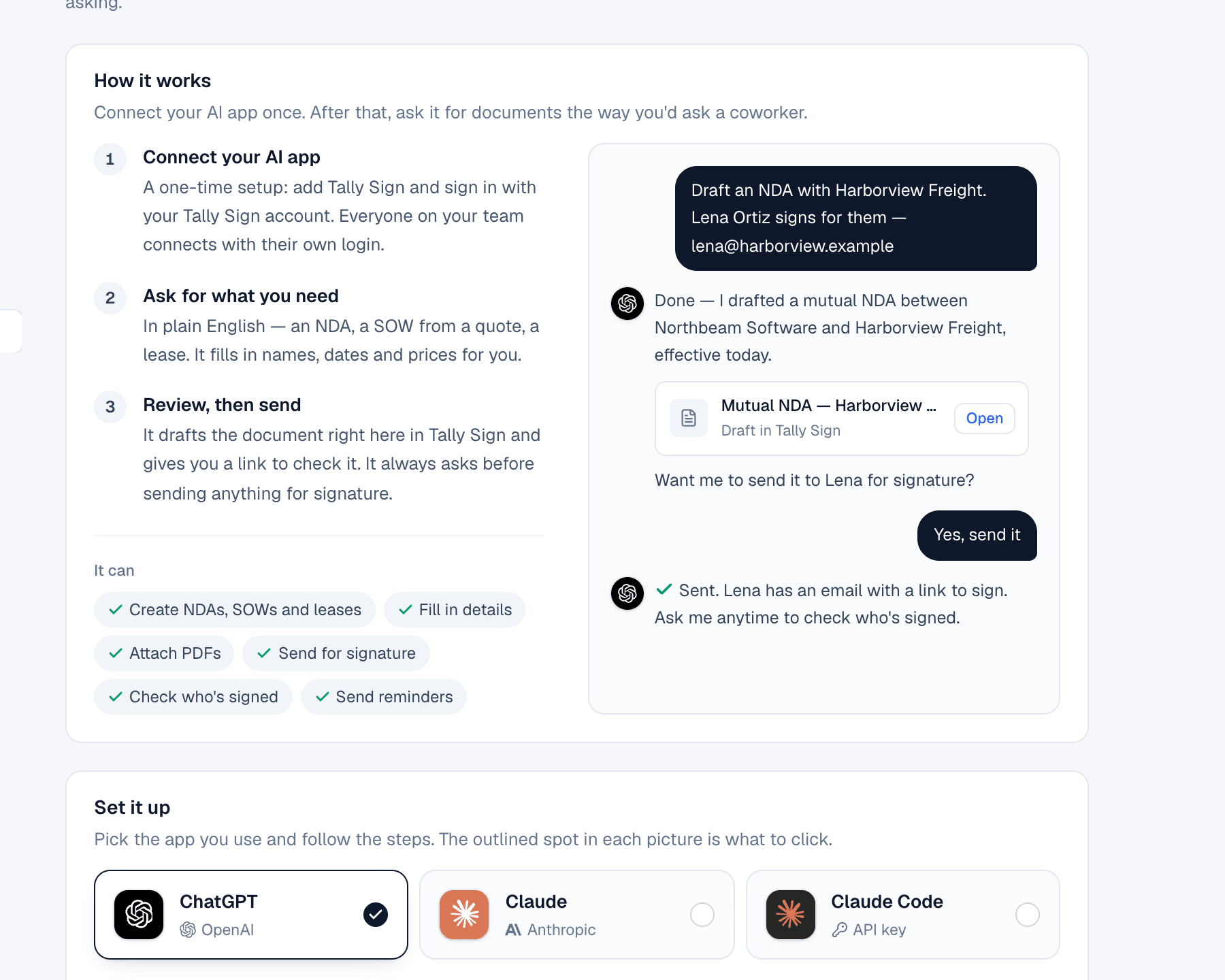
- Connect your AI app. A one-time setup. Everyone on your team connects with their own login.
- Ask for what you need. An NDA, a SOW from a quote, the order form for a Salesforce quote.
- Review, then send. The AI shows you the draft. It sends only after you say so.
Connect ChatGPT
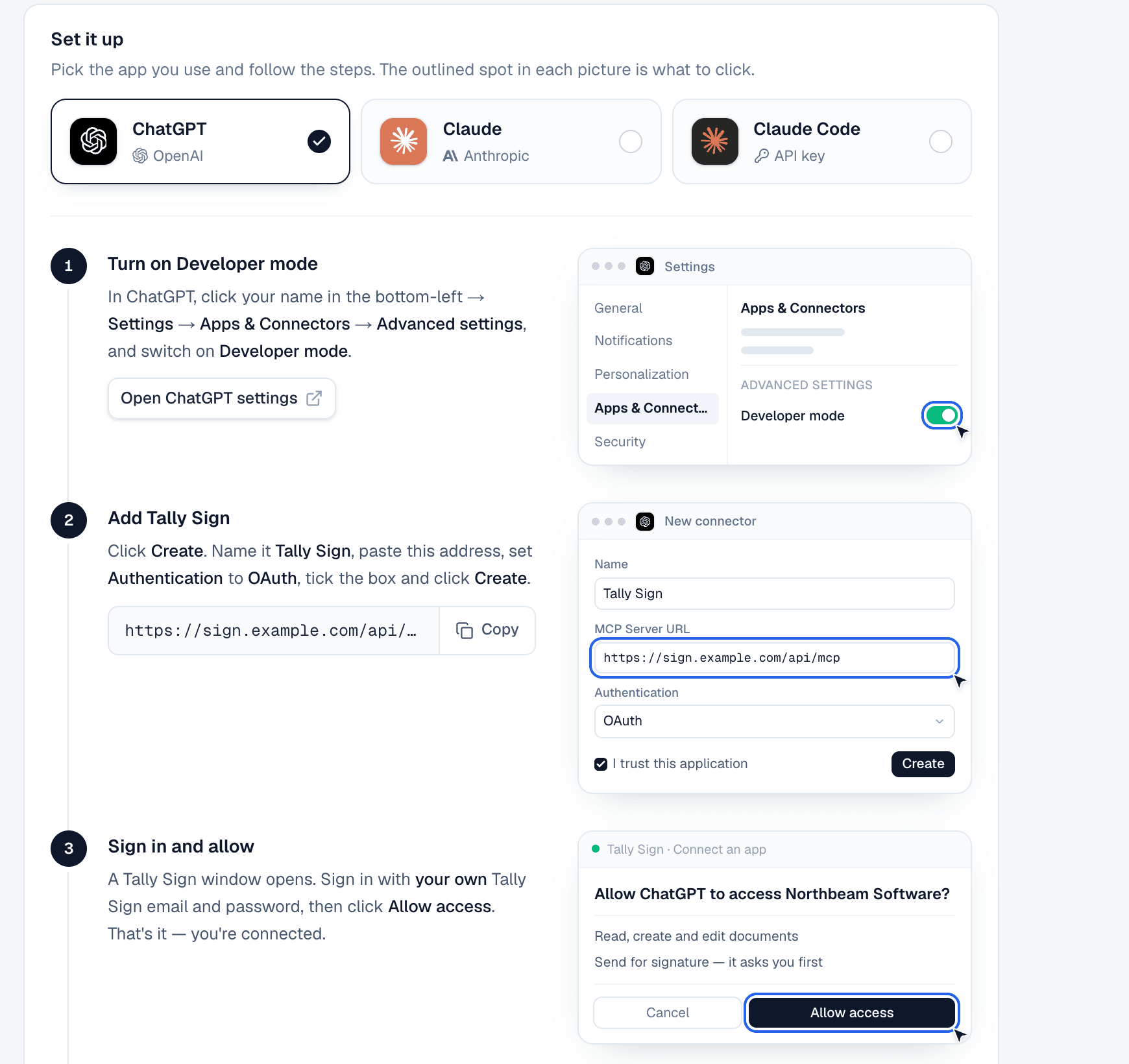
- In ChatGPT, open Settings → Apps & Connectors → Advanced settings and switch on Developer mode.
- Choose Create. Name it Tally Sign and paste the MCP address shown in Settings → AI & API.
- Set Authentication to OAuth, tick the box and choose Create.
- A Tally Sign window opens. Sign in with your own Tally Sign email and password and choose Allow access.
- In a new chat, choose + in the message box and switch on Tally Sign.
Connect Claude
- In Claude, open Settings → Connectors and choose Add custom connector.
- Paste the MCP address from Settings → AI & API and choose Connect.
- Sign in to Tally Sign and choose Allow access.
For Claude Code, create an API key in Settings → AI & API → Claude Code and run the command it shows once in a terminal:
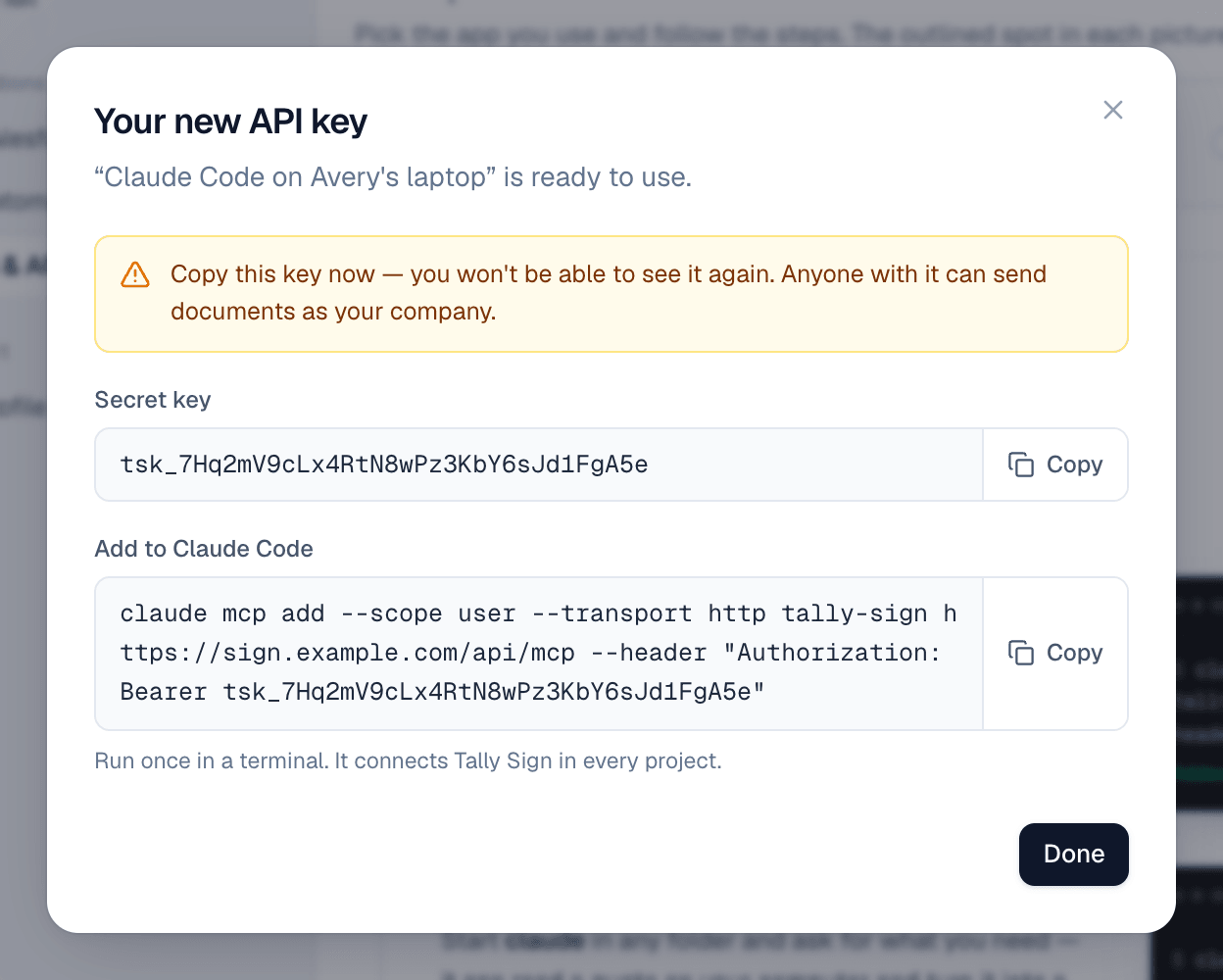
claude mcp add --scope user --transport http tally-sign https://<your Tally Sign address>/api/mcp \
--header "Authorization: Bearer <your key>"Send the order form for a Salesforce quote
With Salesforce connected, the AI can find records, preview a template filled from them and create the document, linked back to the record.
Send the order form for the Brightline Yard Sensors quote to Dana.The AI then:
- Finds the quote with salesforce_search_records.
- Picks the template linked to Quote with list_templates.
- Checks the filled document with salesforce_preview: merge values, signers found and quote lines. It tells you about anything missing.
- Creates a draft with create_from_salesforce and shows you the link.
- Sends it only after you confirm.
Status, the signed PDF and the quote-to-cash steps then flow back to Salesforce exactly as if the rep had sent it from the quote.
Things to ask
- "Draft a mutual NDA with Harborview Freight. Lena Ortiz signs for them, lena@harborview.example."
- "Turn this estimate into a SOW for Dana Whitfield at Brightline Logistics and attach the PDF as Exhibit A."
- "Who hasn't signed the Brightline order form yet? Send them a reminder."
- "Void the Driver Training order form. The customer is doing training in-house."
- "Get me the signed PDF of the Brightline Depot Rollout order form."
What the AI can do
| Area | Tools |
|---|---|
| Find | list_templates, list_documents, get_document, get_status |
| Create | create_document, create_sow, create_nda, create_lease, duplicate_document |
| Edit drafts | update_document, set_recipients, edit_blocks, attach_pdf, check_document |
| Send and follow up | send_document (only after you approve), send_reminder, void_document, get_pdf_link |
| Salesforce | salesforce_search_records, salesforce_preview, create_from_salesforce |
On the website: ChatGPT, Claude and MCP·Pricing