Negotiate from inside Salesforce
Reply to questions, leave internal notes and accept or reject redlines without leaving the record.
2 sections · 9 screenshots
On this page
Reply and leave notes
Customers negotiate on the signing page. Here the customer asked a question, suggested an edit to the terms and requested a change to the order summary.

You see it all on the record. The Tally Sign tab shows a count on Conversation and Redlines.
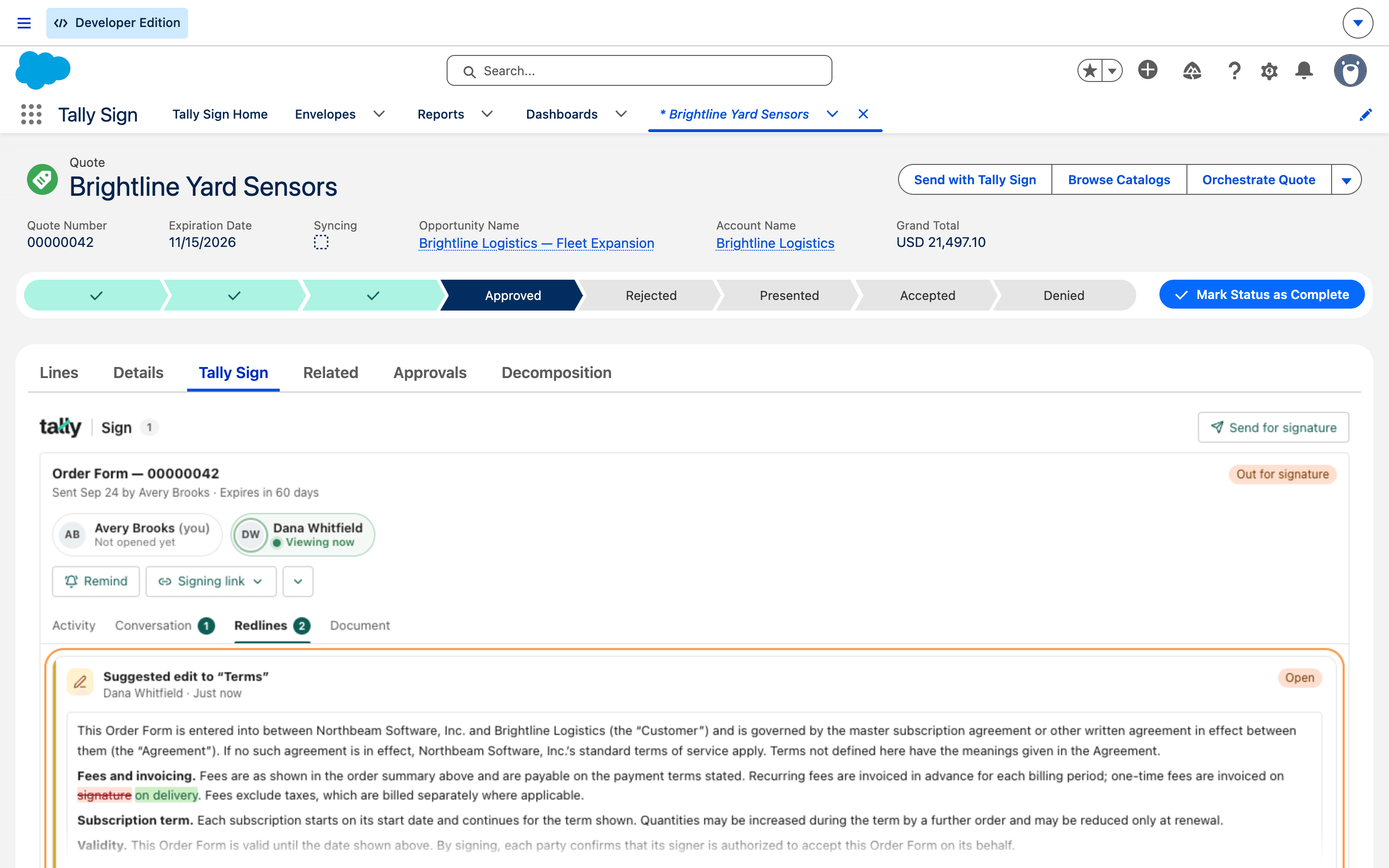
- Open Conversation.
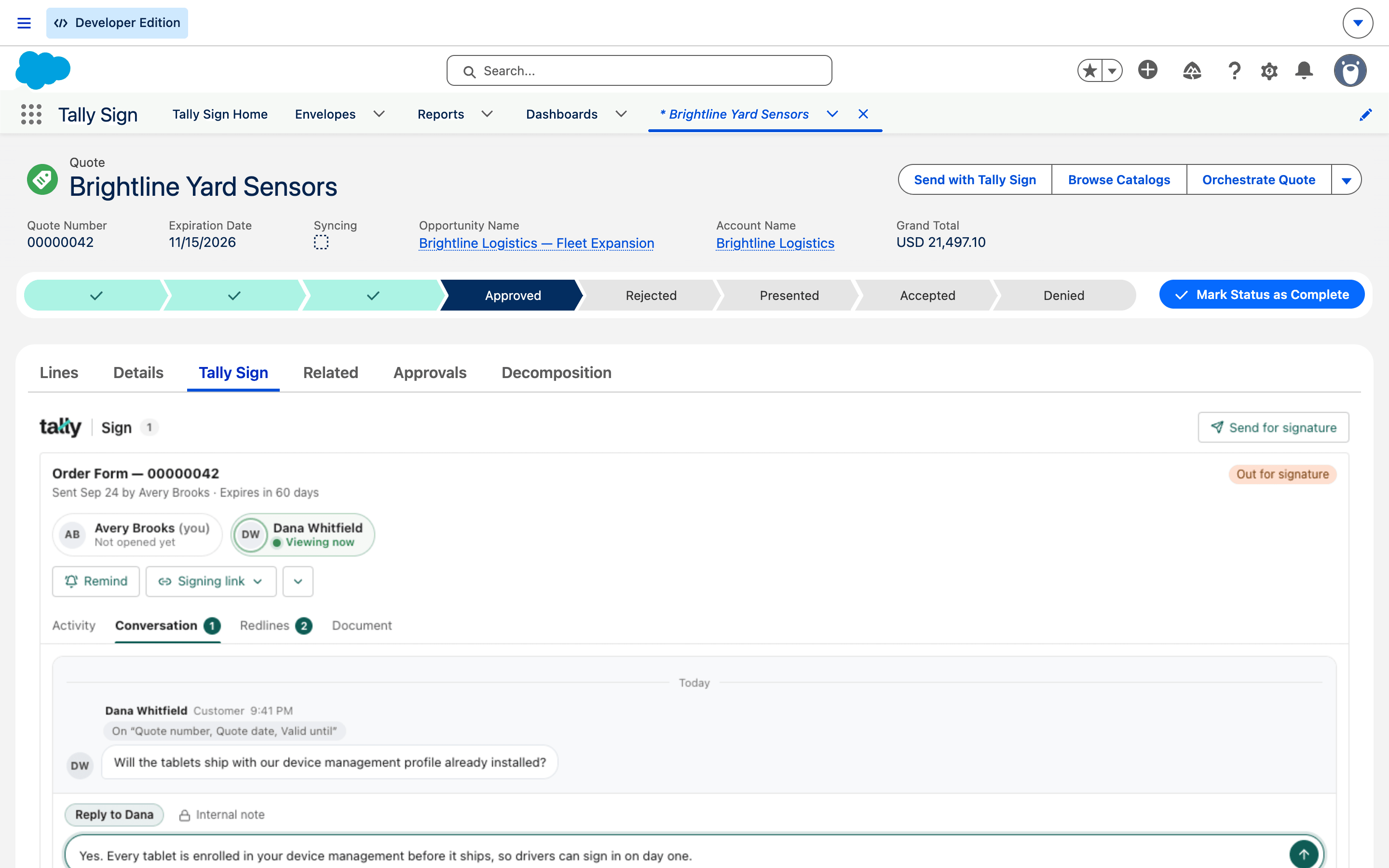
- With Reply to Dana selected, type your answer. Press Enter to send.
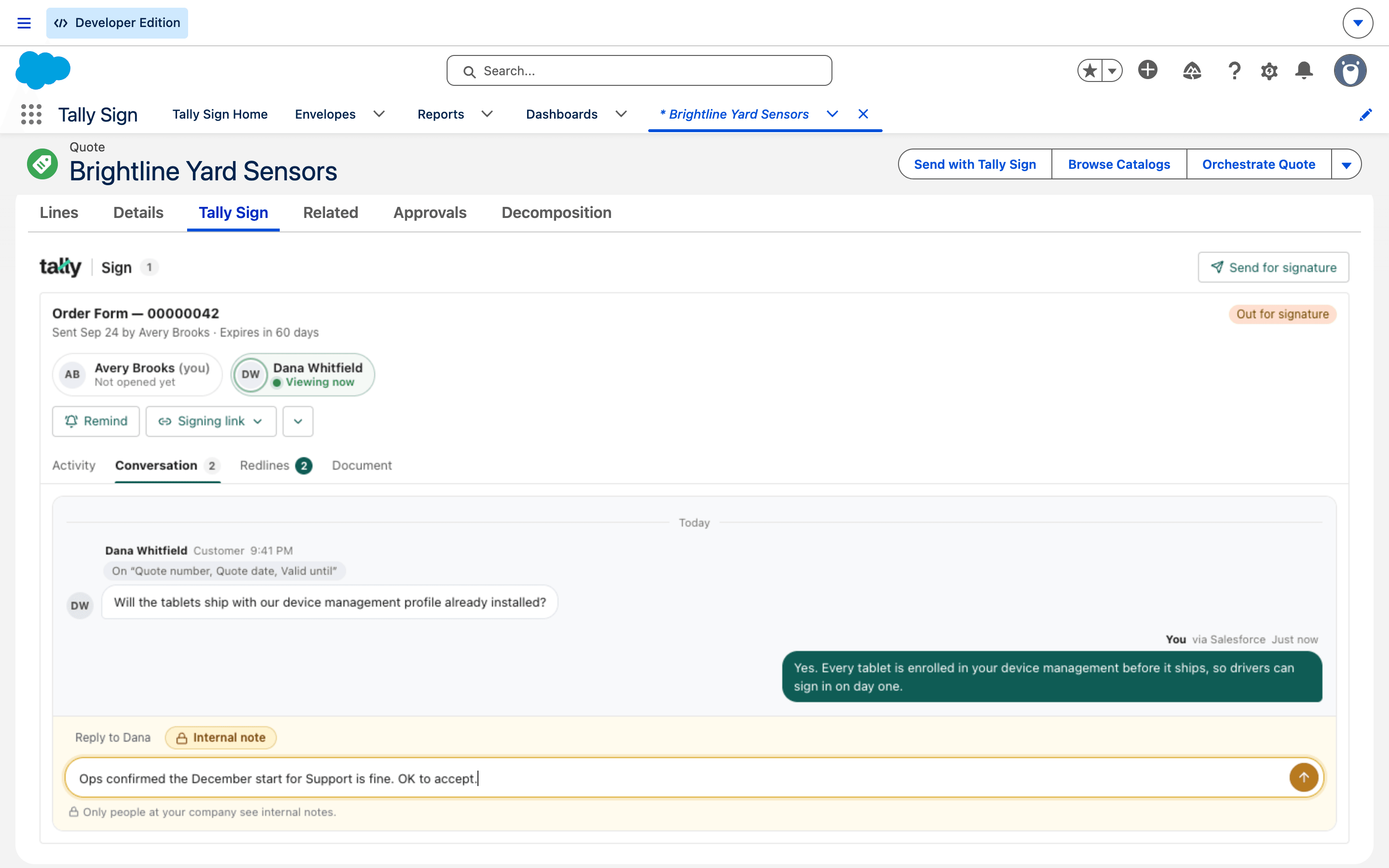
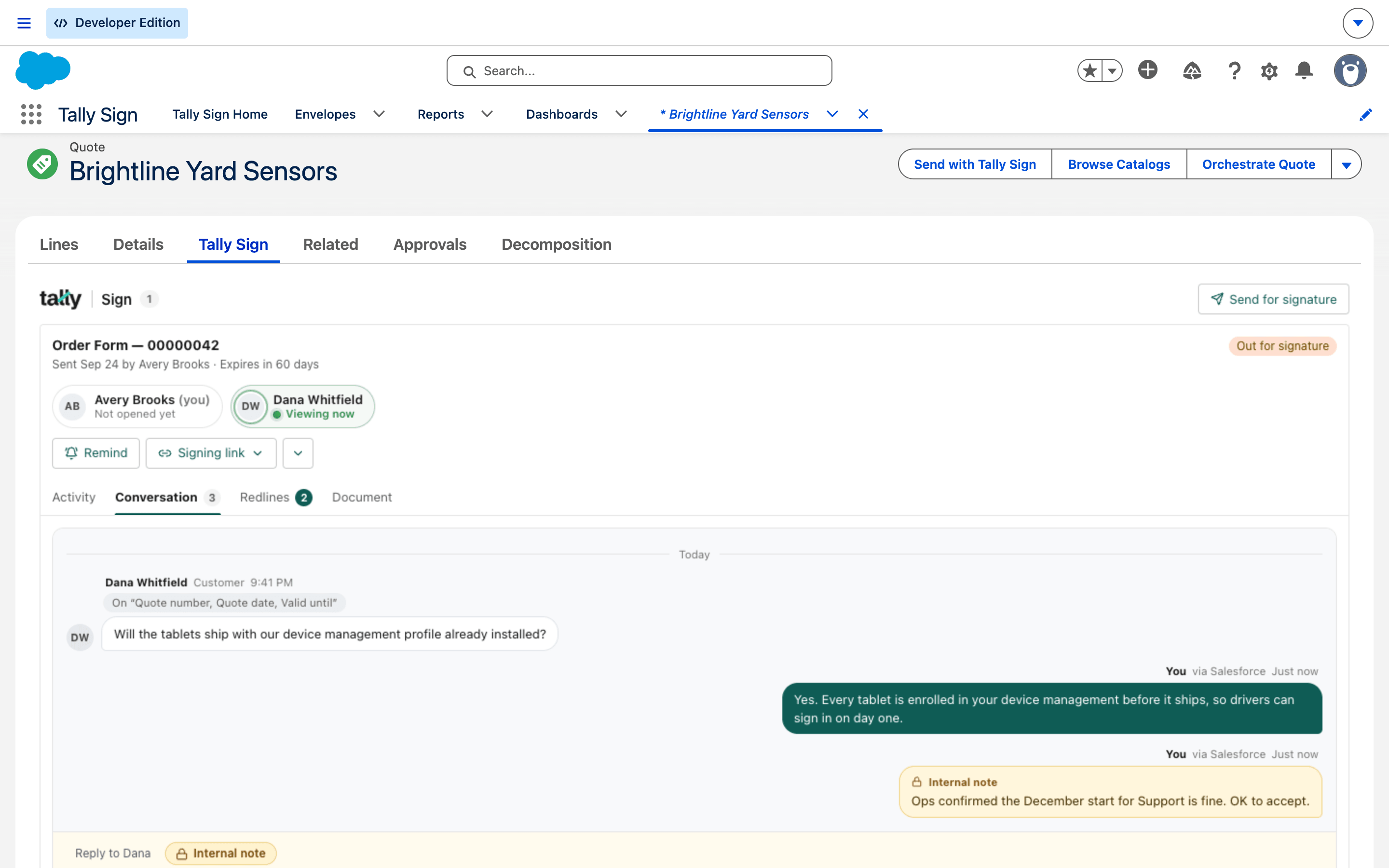
- To talk to your team only, choose Internal note first. The composer turns yellow.
Accept, reject or counter
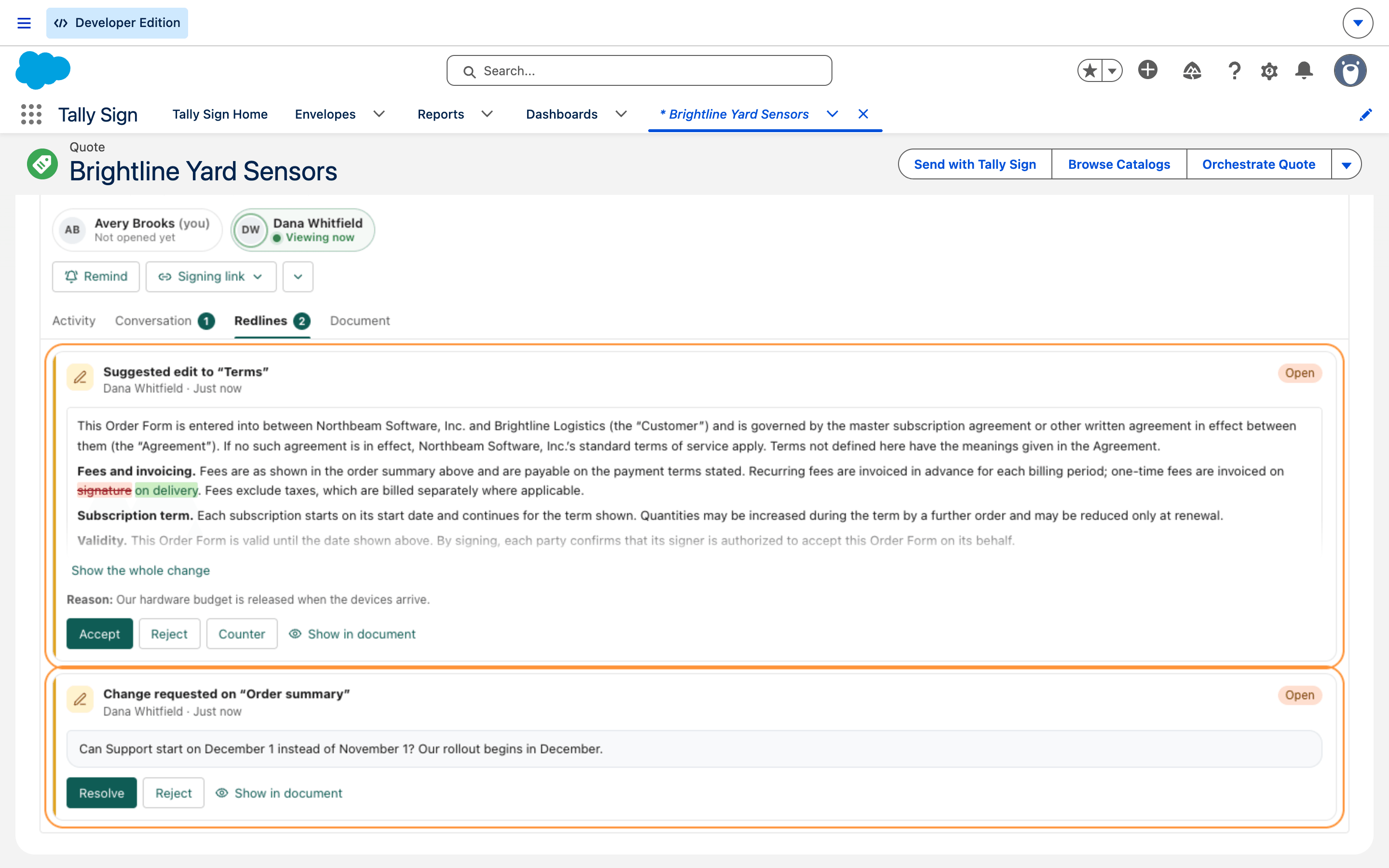
| Card | Actions |
|---|---|
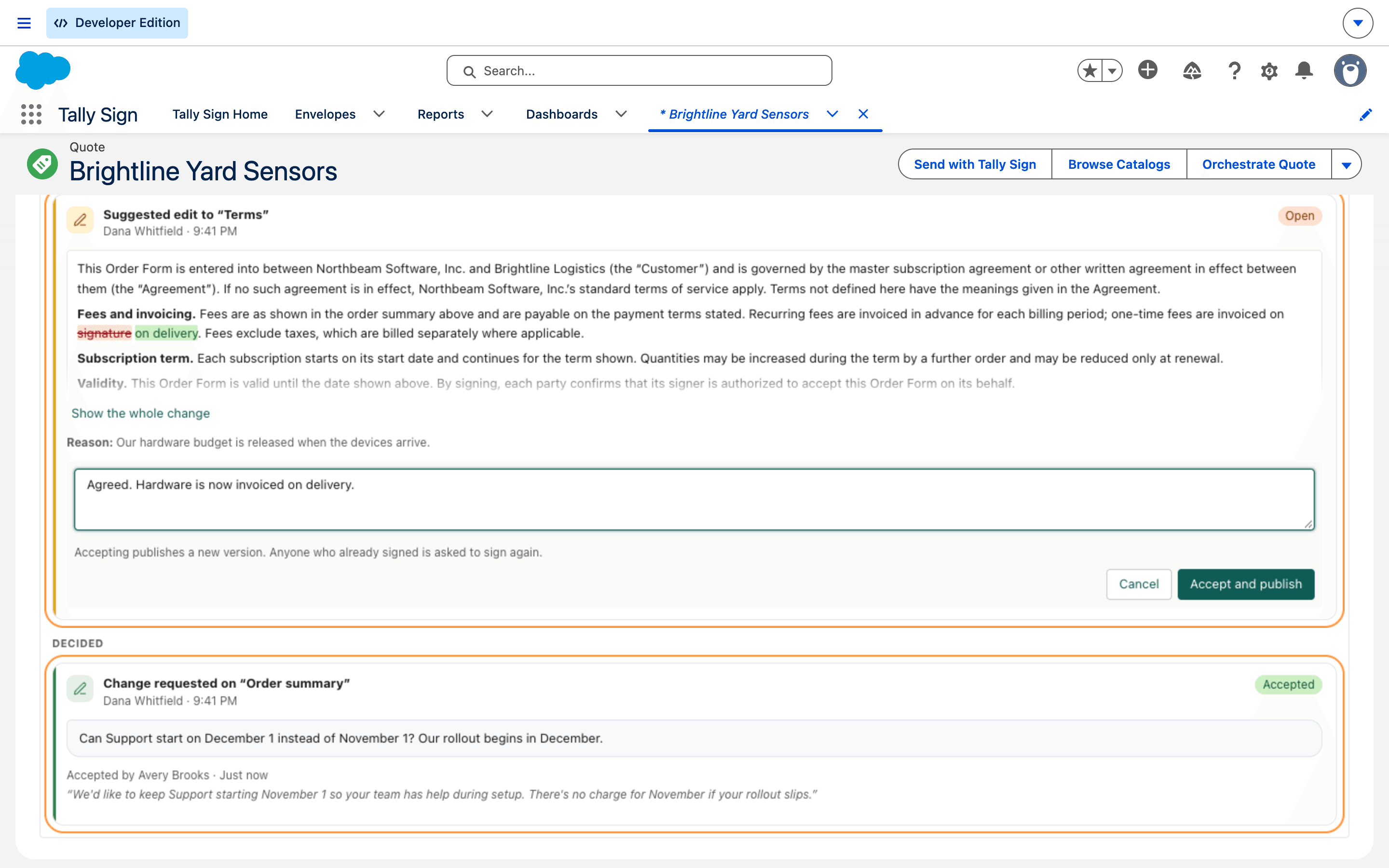
| Suggested edit | Accept, Reject, Counter (edit the wording and accept your version), Show in document |
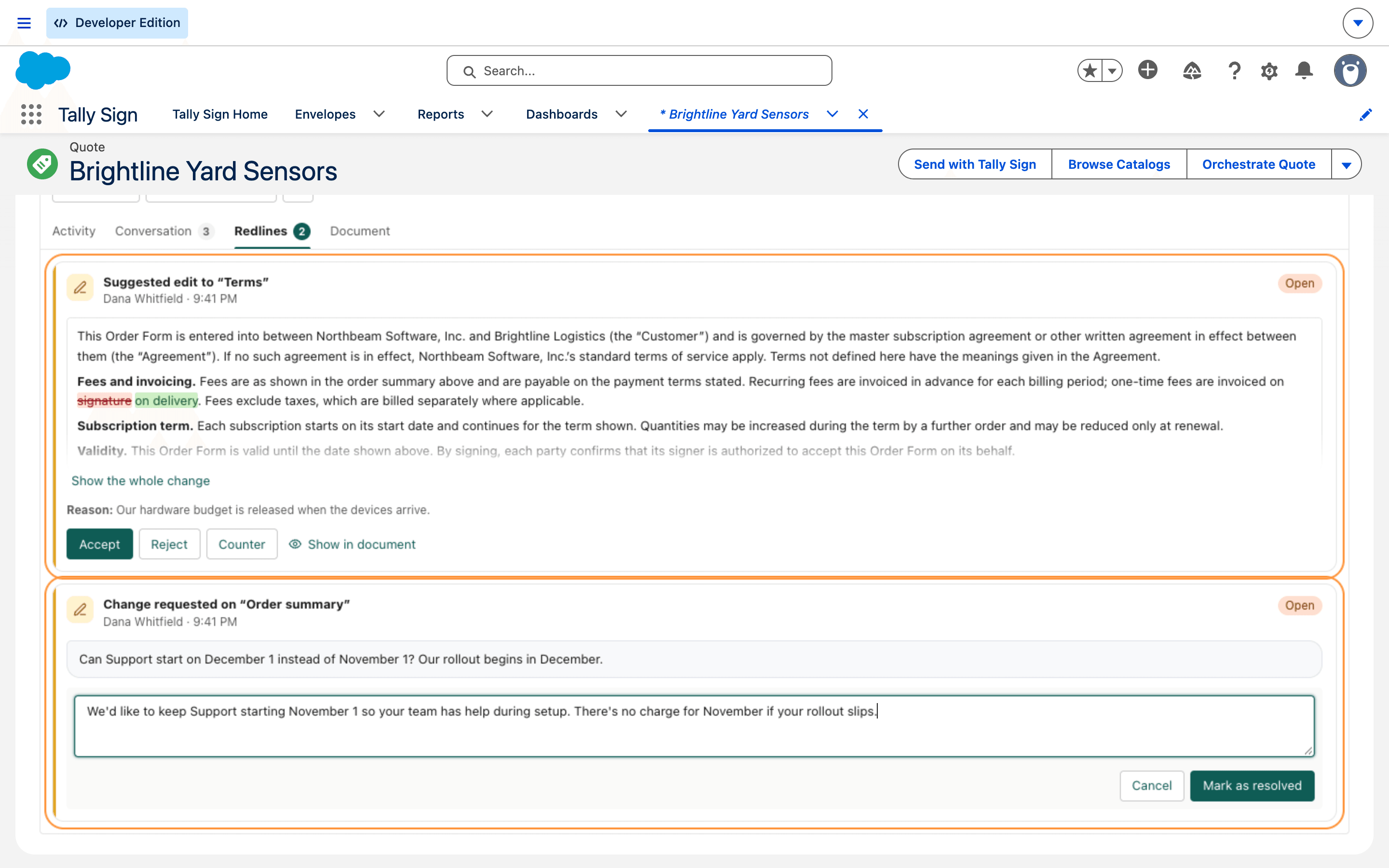
| Change request | Resolve (after you've made the change), Reject, Show in document |
- For a change request, choose Resolve, add a note for the customer and choose Mark as resolved.
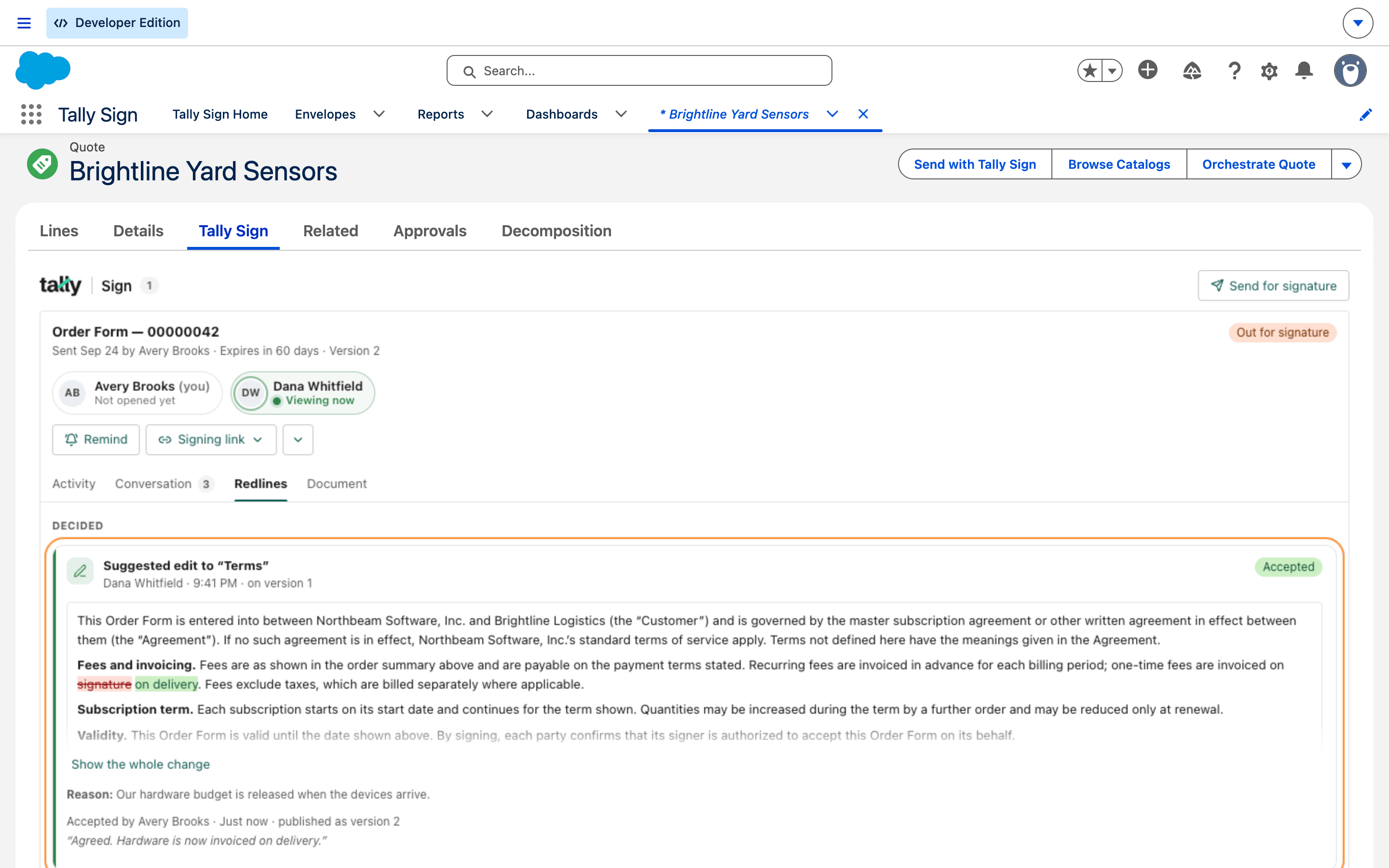
- For a suggested edit, choose Accept, add an optional note and choose Accept and publish.
On the website: Any object·Pricing