Envelopes, reports and the dashboard
Every document sent from Salesforce becomes an Envelope record you can list, report on and use in Flows.
3 sections · 4 screenshots
Envelopes
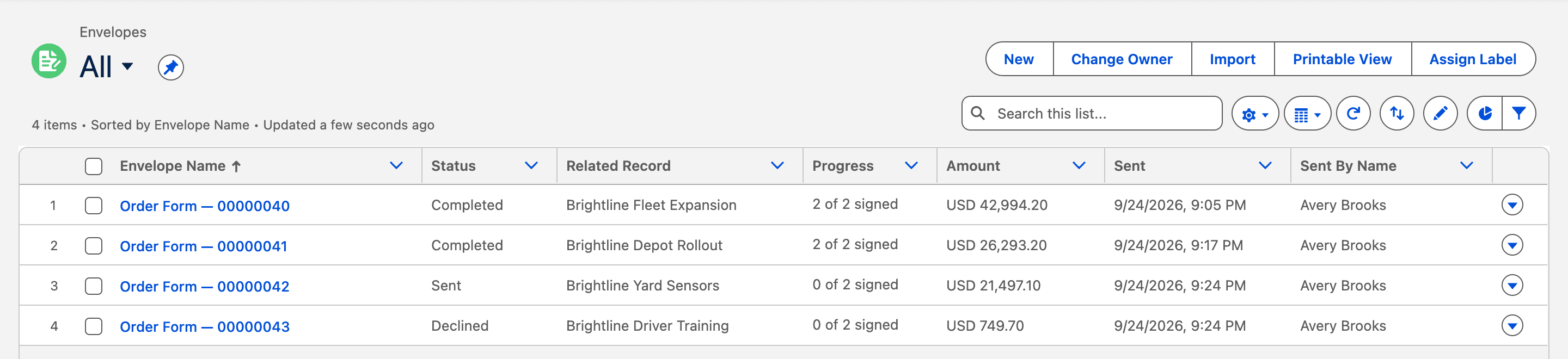
Tally Sign creates and updates an Envelope record for each document linked to Salesforce, with its Recipients and Activity. The package never edits them itself; you don't need to either.
| Field | What it holds |
|---|---|
| Status | Draft, Sent, Completed, Declined, Voided or Expired |
| Progress | For example 1 of 2 signed |
| Related Record | The Quote, Opportunity, Order, Contract or Account it was sent from, with lookups to each |
| Amount | The document's total, in Currency Code |
| Sent Via | Salesforce, Automation, Tally Sign or API |
| Days to Sign | From sending to completion |
| Created Order, Created Contract | Set by the quote-to-cash steps |
| Lifecycle Log, Last Error | What ran after signing, and the last problem |
Reports
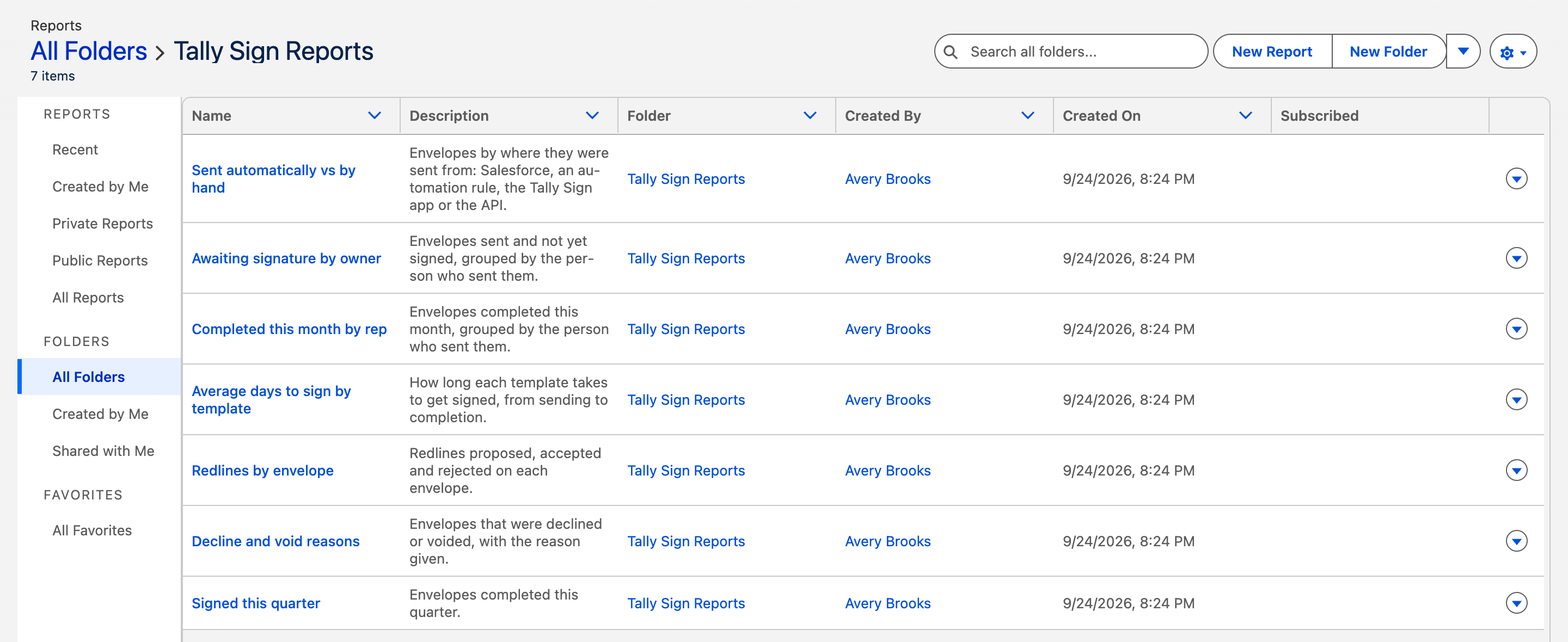
The Tally Sign Reports folder has seven reports:
- Signed this quarter
- Awaiting signature by owner
- Completed this month by rep
- Average days to sign by template
- Redlines by envelope
- Decline and void reasons
- Sent automatically vs by hand
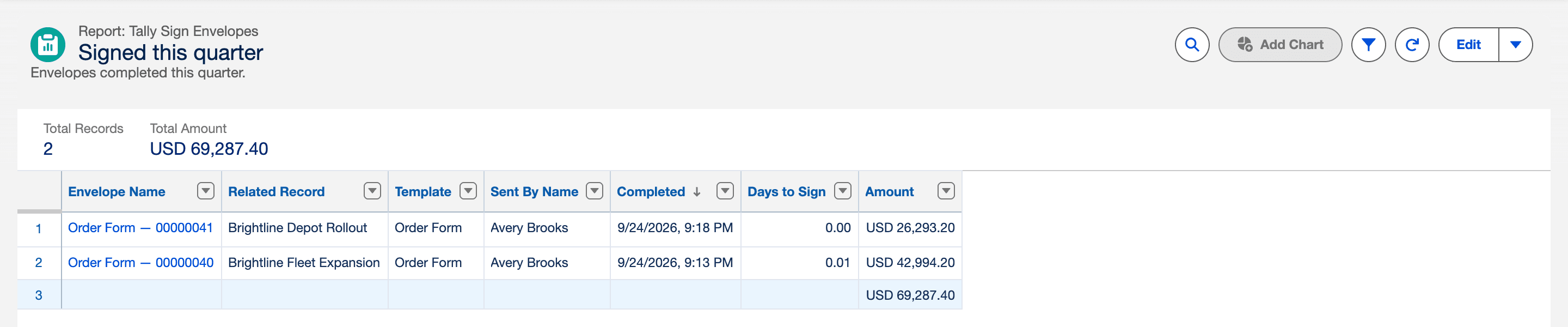
To build your own, use the report types Tally Sign Envelopes, Tally Sign Envelopes with Recipients and Tally Sign Envelopes with Activity.
The Tally Sign Overview dashboard
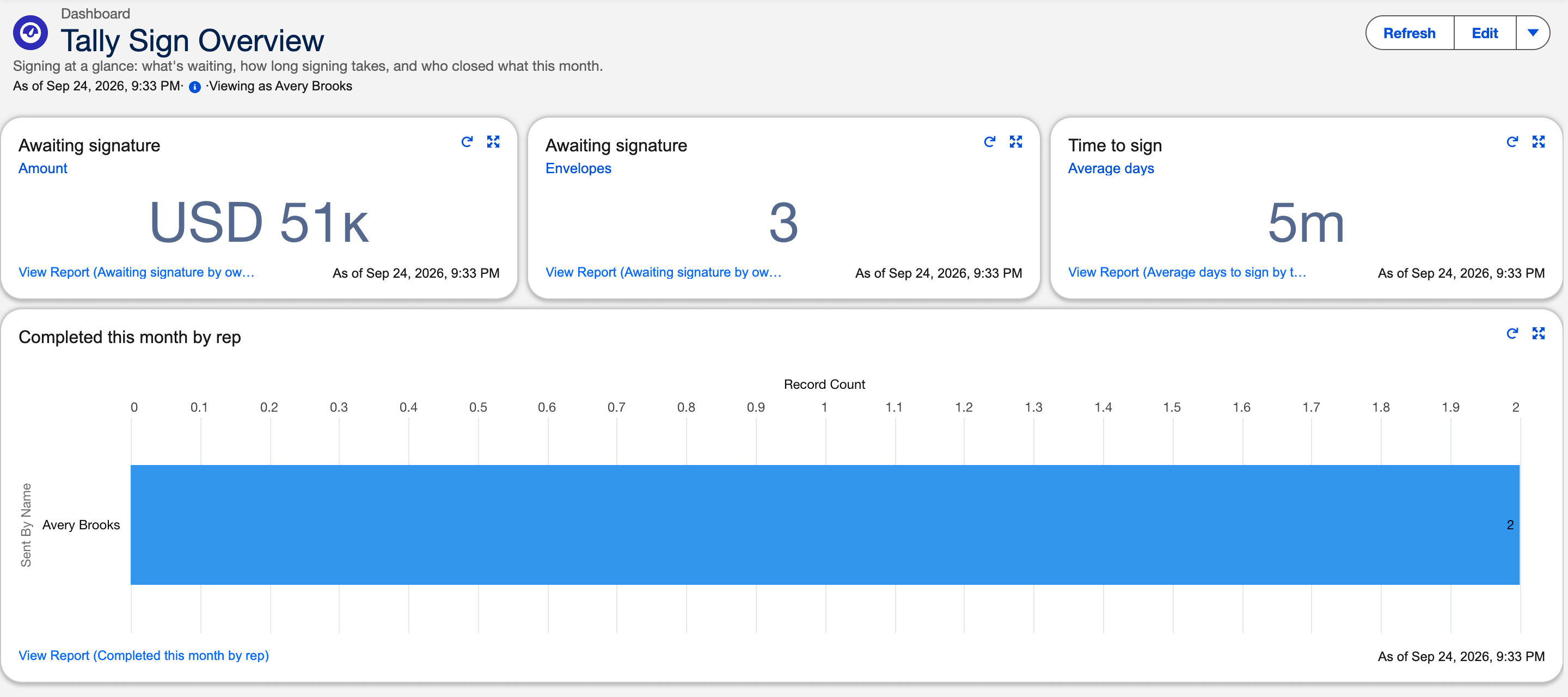
Open Dashboards → Tally Sign Overview in the Tally Sign app: amount and number of envelopes awaiting signature, average time to sign, and what each rep closed this month.
On the website: Any object·Pricing