Salesforce fields in templates and Preview as record
Place any field from the record, or its parent records, and preview the template with real data.
3 sections · 4 screenshots
Link a template to an object
- Open the template in the editor and choose the Salesforce tab on the right.
- Under Used for, pick the object you send it from, for example Quote.

Linking sets default signer rules for that object. You can change them in the same tab.
Insert a field
- Click in the text where the value should go.
- Choose Salesforce field in the toolbar.
- Search the list. Fields of the object come first, then related records you can open with the arrow, for example Account.
- Pick a field. It appears on the page as a chip labeled with the field name, for example Account › Billing Address.
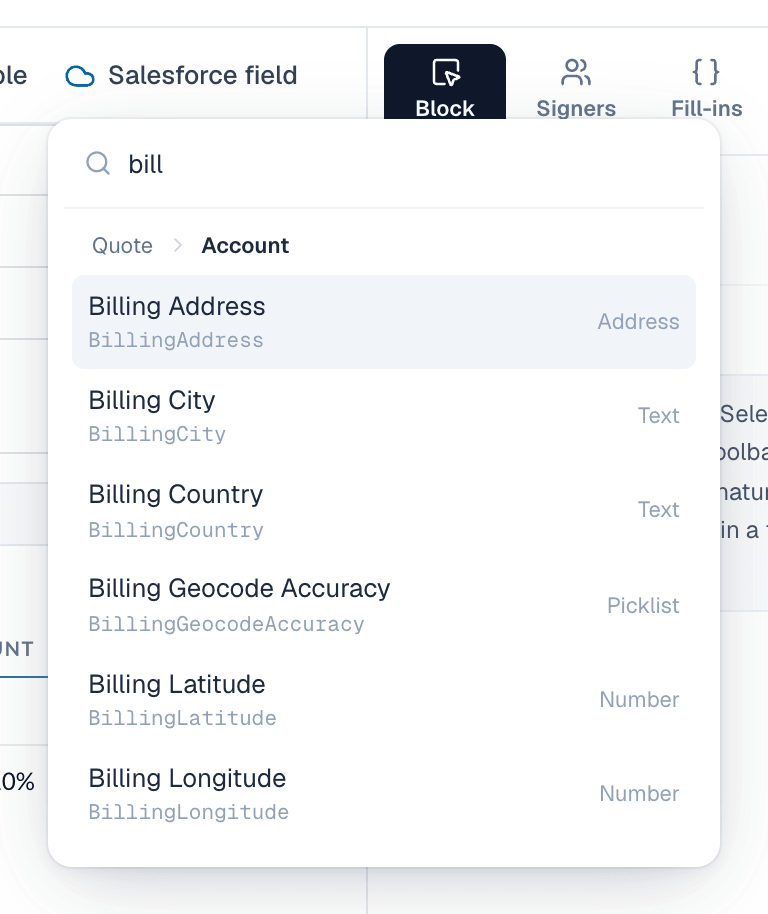
Behind the chip the template stores a merge field such as:
{{record.QuoteNumber}}
{{record.Account.Name}}
{{record.Opportunity.Owner.Name}}| Field type | Shown as |
|---|---|
| Date and date/time | October 1, 2026 |
| Currency | In the record's currency, for example $42,994.20 |
| Percent | 12.5% |
| Checkbox | Yes or No |
| Address | Street, then City, State Postal code, then Country on separate lines |
Preview as record
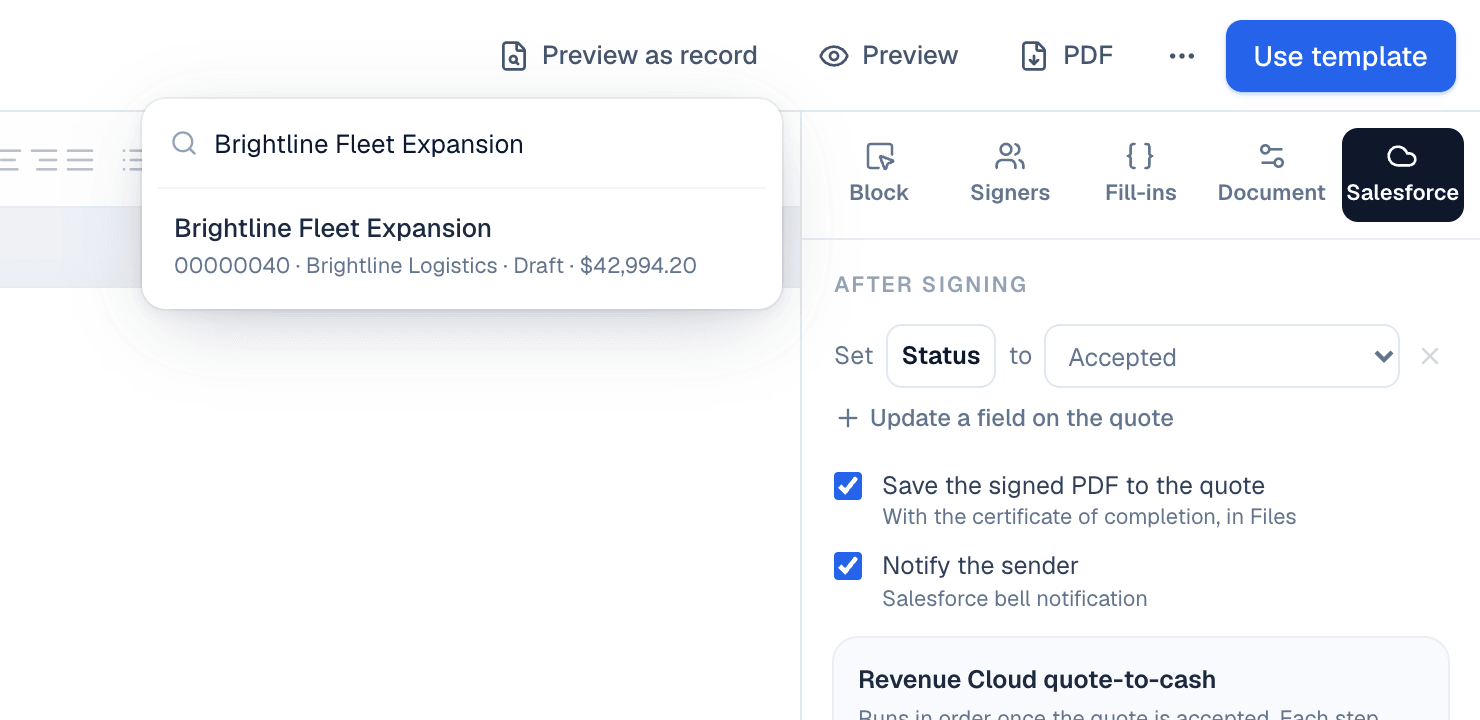
- In the editor, choose Preview as record.
- Search for a record by name or number and pick it.
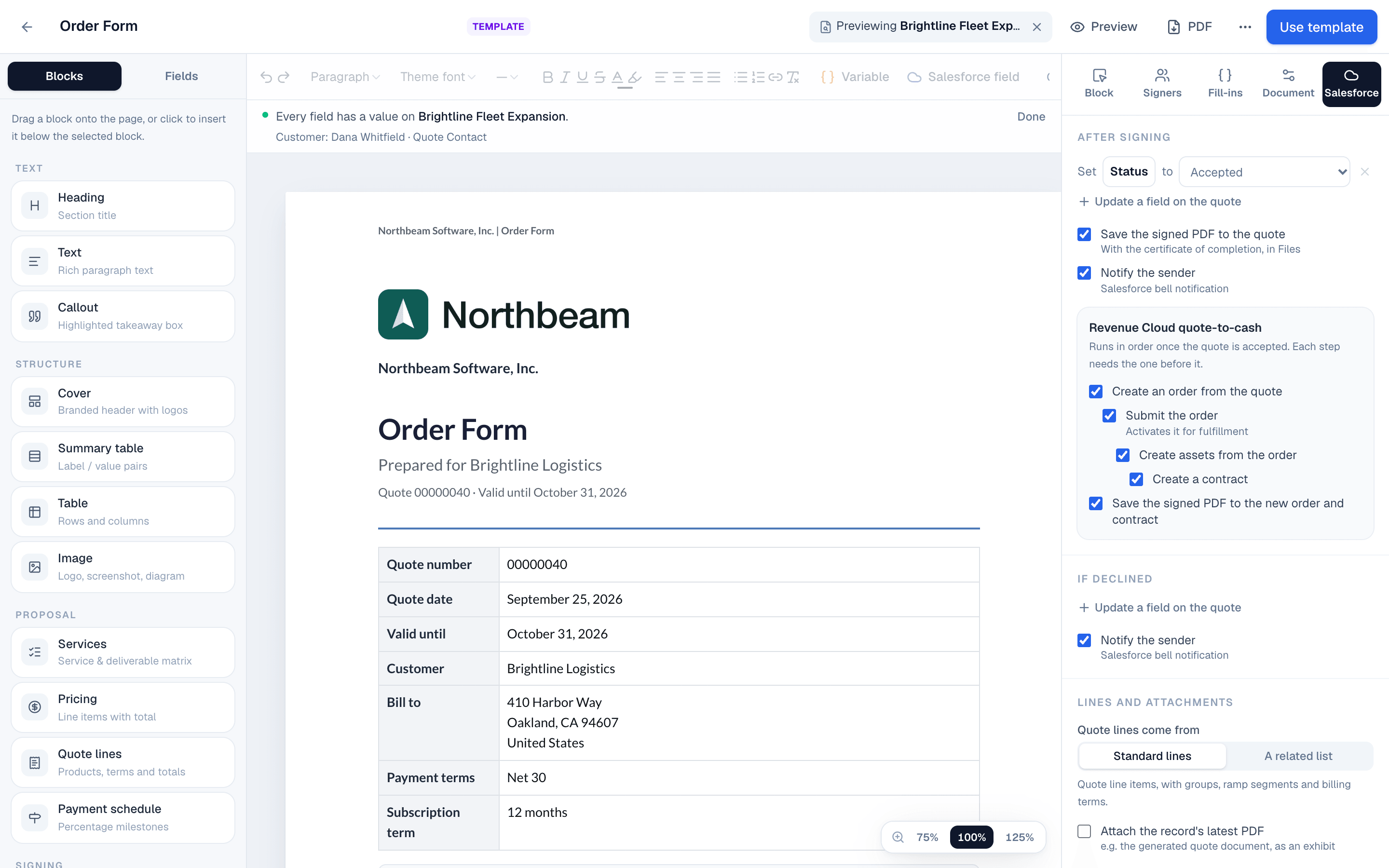
- The page fills with the record's values and quote lines. The bar at the top lists the signers found and any missing values.
- Choose Stop previewing to go back to editing.
On the website: Any object·Pricing