Install the package and add the component
Install the Tally Sign package, assign permission sets, put the component on record pages and add the quick action.
4 sections · 4 screenshots
The Tally Sign package is small on purpose. It adds the Tally Sign component, Envelope records for reporting, Flow actions and a quick action. Everything else is set up in Tally Sign.
Install the package
- In Tally Sign, open Settings → Salesforce and find Tally Sign package.
- Choose Install next to the install link. Choose Install for Admins Only or All Users.
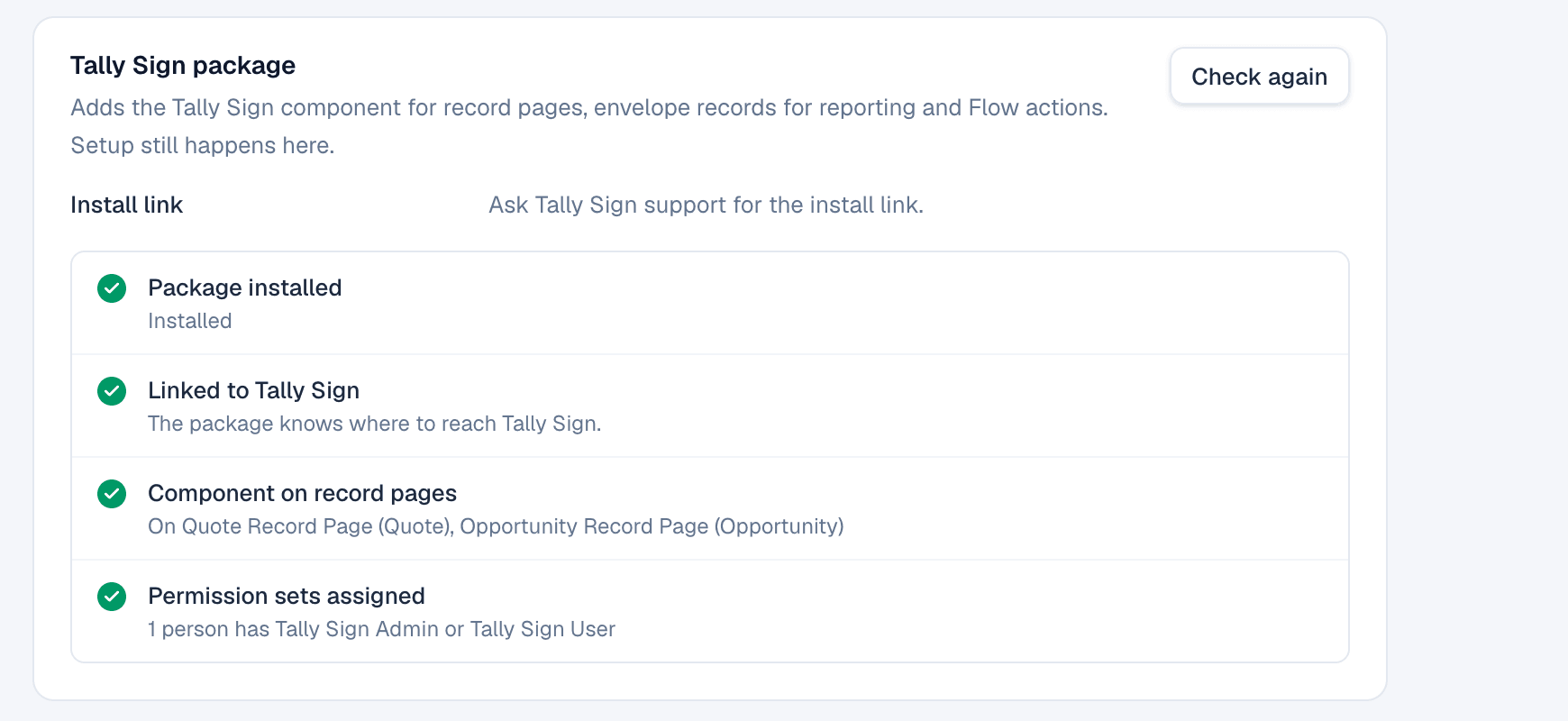
- Back in Tally Sign, choose Refresh under What we found. Tally Sign links the package to your account.
- Choose Check Salesforce to verify the setup.
Assign permission sets
| Permission set | Give it to |
|---|---|
| Tally Sign User | Reps. Read access to envelopes, the component and the Flow actions. |
| Tally Sign Admin | Admins and the user Tally Sign connects as. Full access to envelopes. |
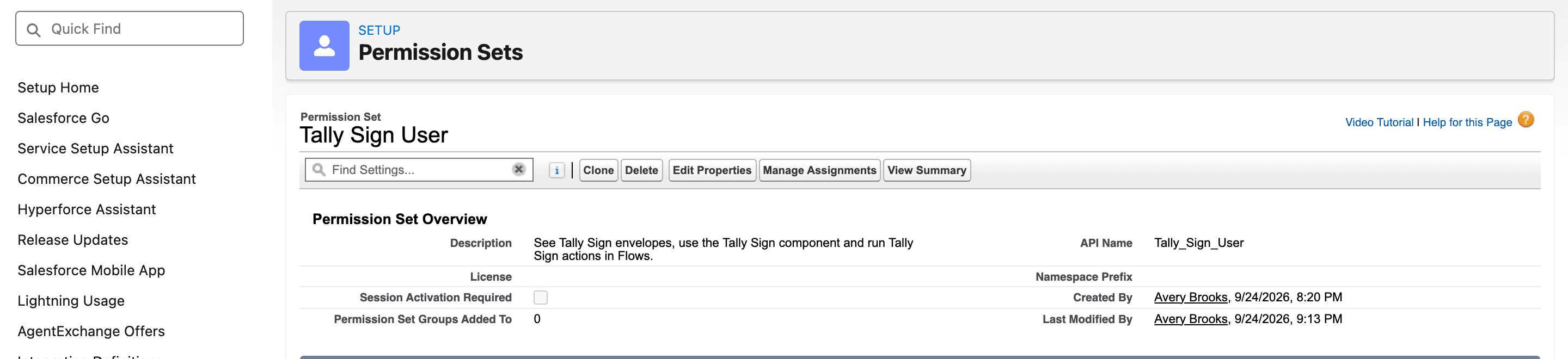
Permission sets decide what people can open in Salesforce. Who can send is decided by seats in Tally Sign. See Seats.
Add the component to record pages
- Open any Quote in Salesforce.
- Choose the gear icon, then Edit Page.
- Add a tab next to Details and name it Tally Sign.
- Drag Tally Sign from Custom components into the tab. Set View to
record. - Choose Save, then Activate.
Do the same on Opportunity, Order, Contract or Account pages if you send from them. The Envelope record page in the package already has the component.
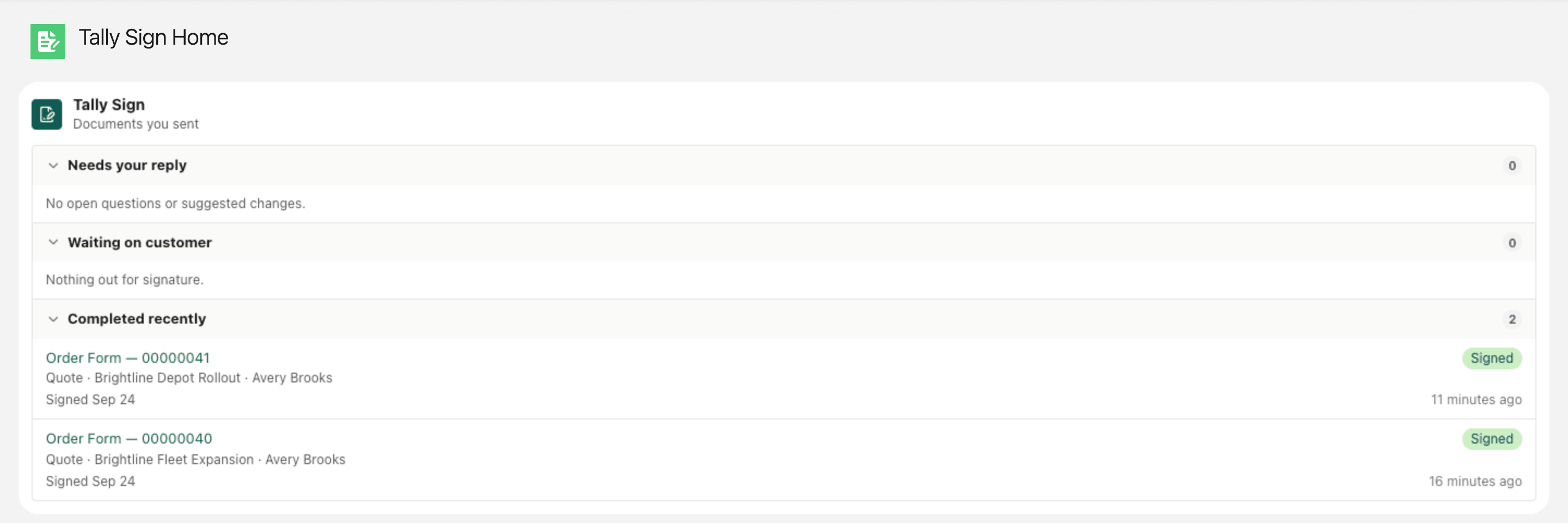
For a list of everything you've sent, add the component with View set to inbox to a home page, an app page or the utility bar. The Tally Sign app's Tally Sign Home tab already has it.
Add the quick action
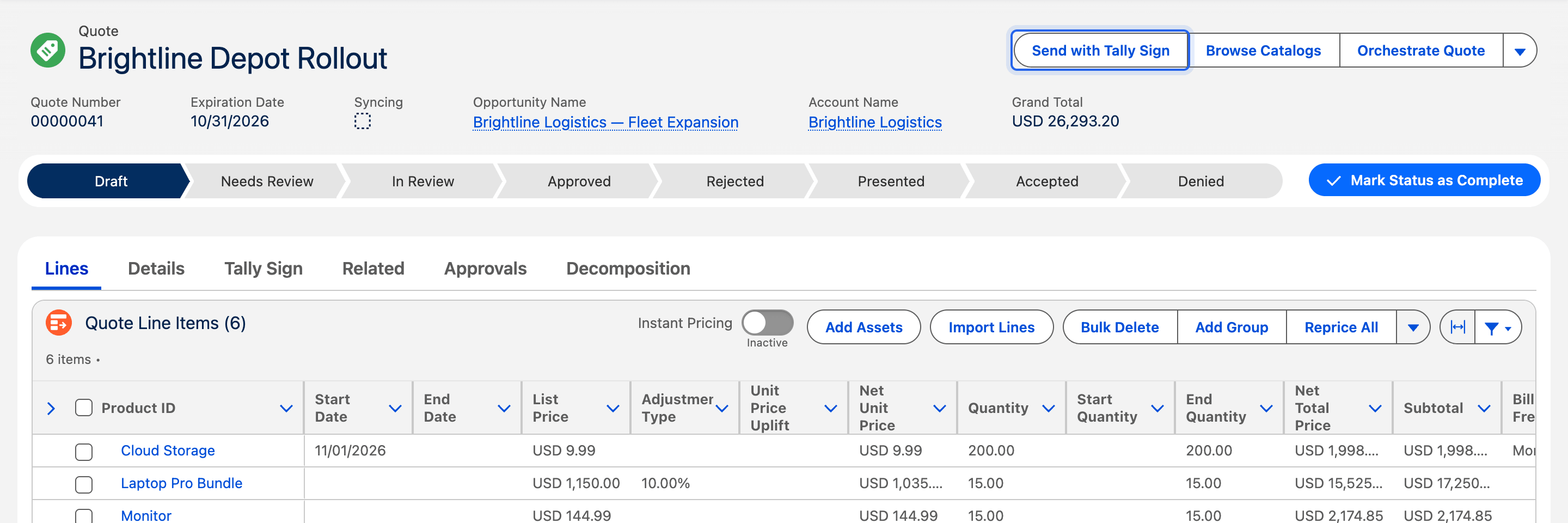
Page layouts belong to your org, so the package doesn't change them. Add the action yourself:
- In Setup, open Object Manager → Quote → Page Layouts and open the layout your reps use.
- In Mobile & Lightning Actions, drag Send with Tally Sign into Salesforce Mobile and Lightning Experience Actions.
- Save. Repeat for Opportunity, Order, Contract and Account.
On the website: Any object·Pricing