What your customer sees when signing
The signing page from the signer's side: consent, fields, adopting a signature and finishing.
4 sections · 6 screenshots
Signers don't need an account. They open the link in the email and sign in the browser, on a computer or a phone. The page carries your logo and brand color.
Consent to sign electronically
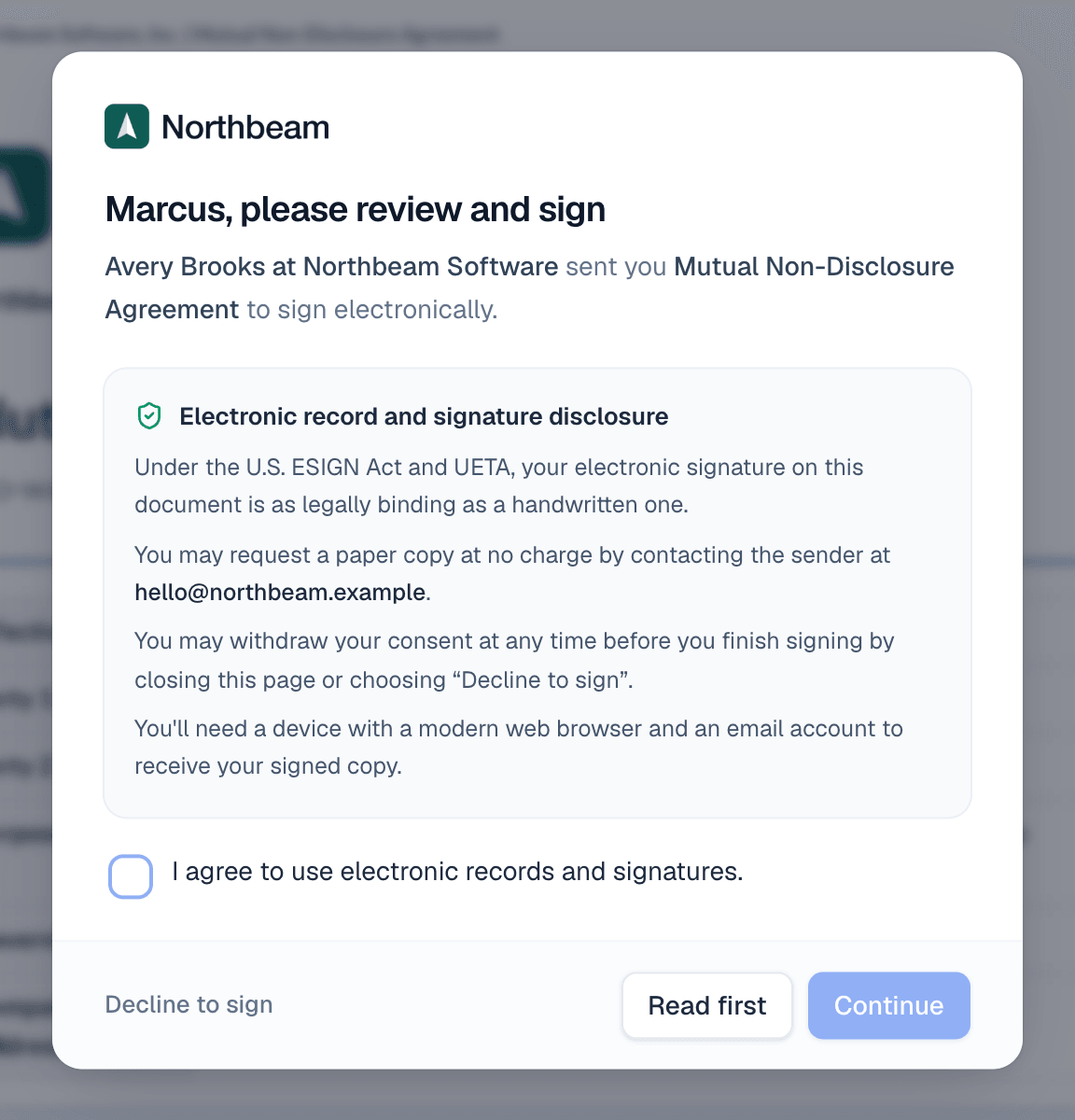
The first time a signer opens the link, they see who sent the document and a short disclosure about electronic signatures. They tick I agree to use electronic records and signatures and choose Continue. They can also choose Read first or Decline to sign.
Fill in the fields
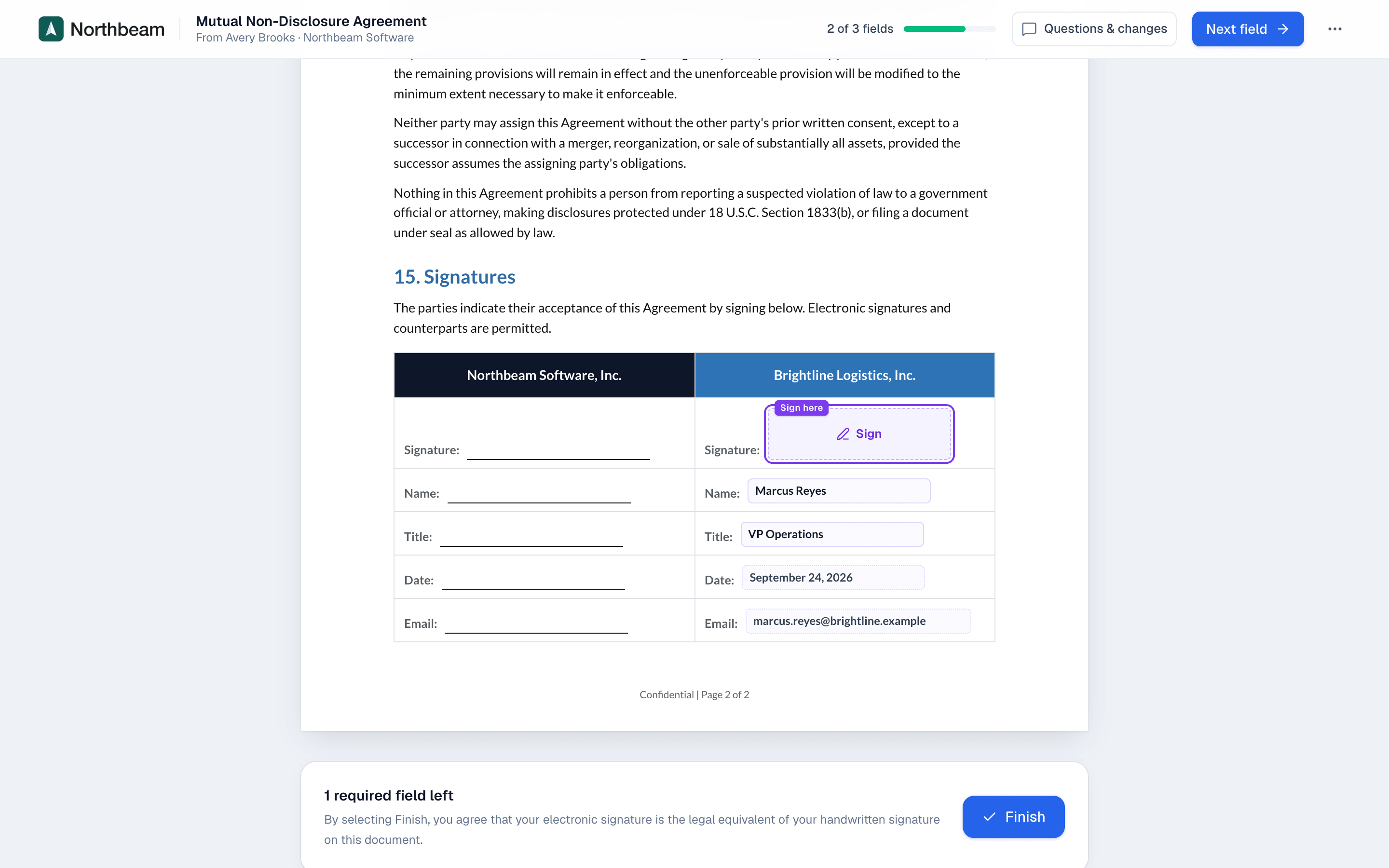
The signer's fields are highlighted. The header shows how many are done, for example 2 of 3 fields. Start, then Next field, jumps from one field to the next.

Adopt a signature
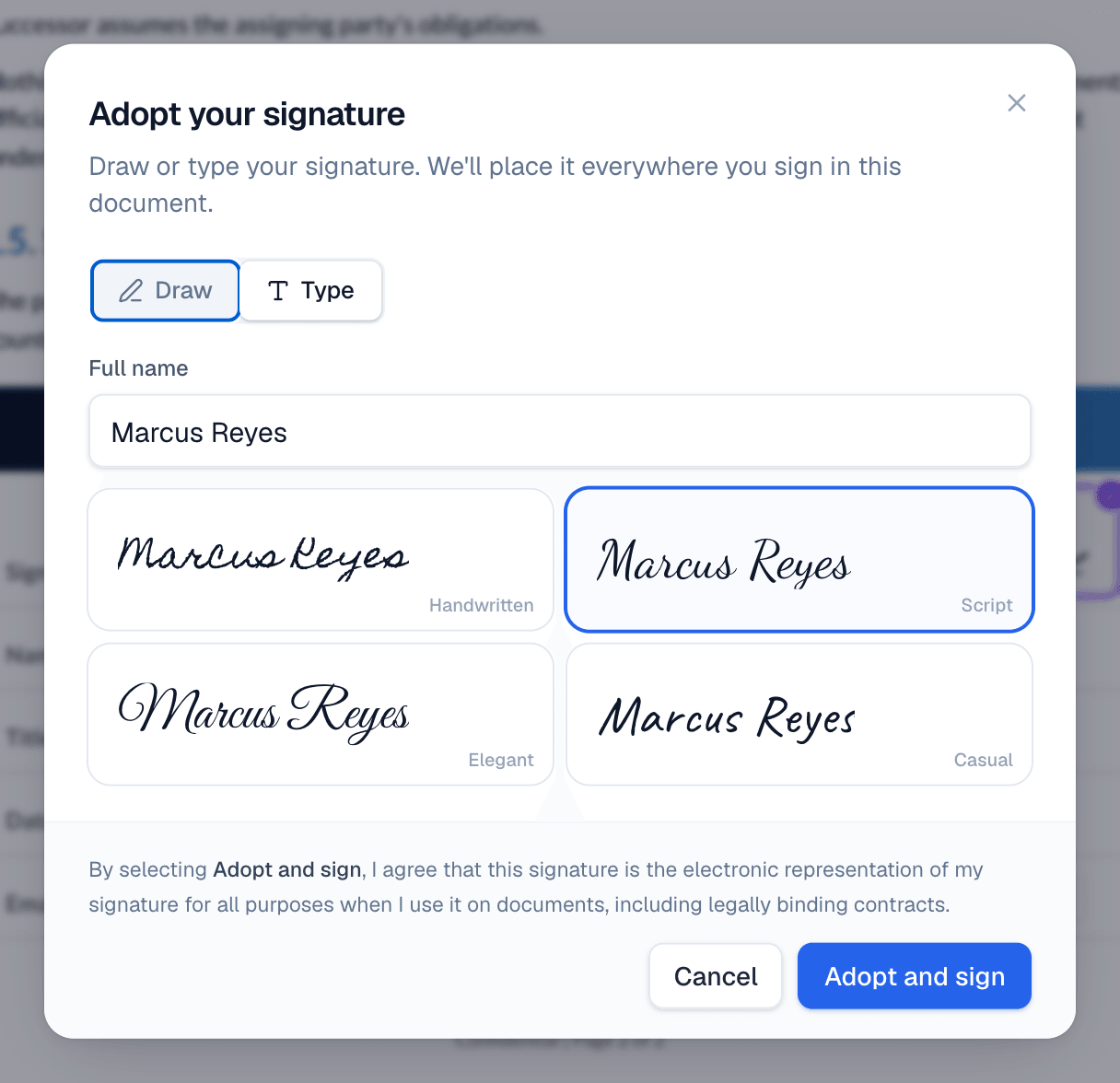
Clicking a signature field opens Adopt your signature. The signer draws it, or types their name and picks a style. The same signature is placed everywhere they sign in the document.
Finish
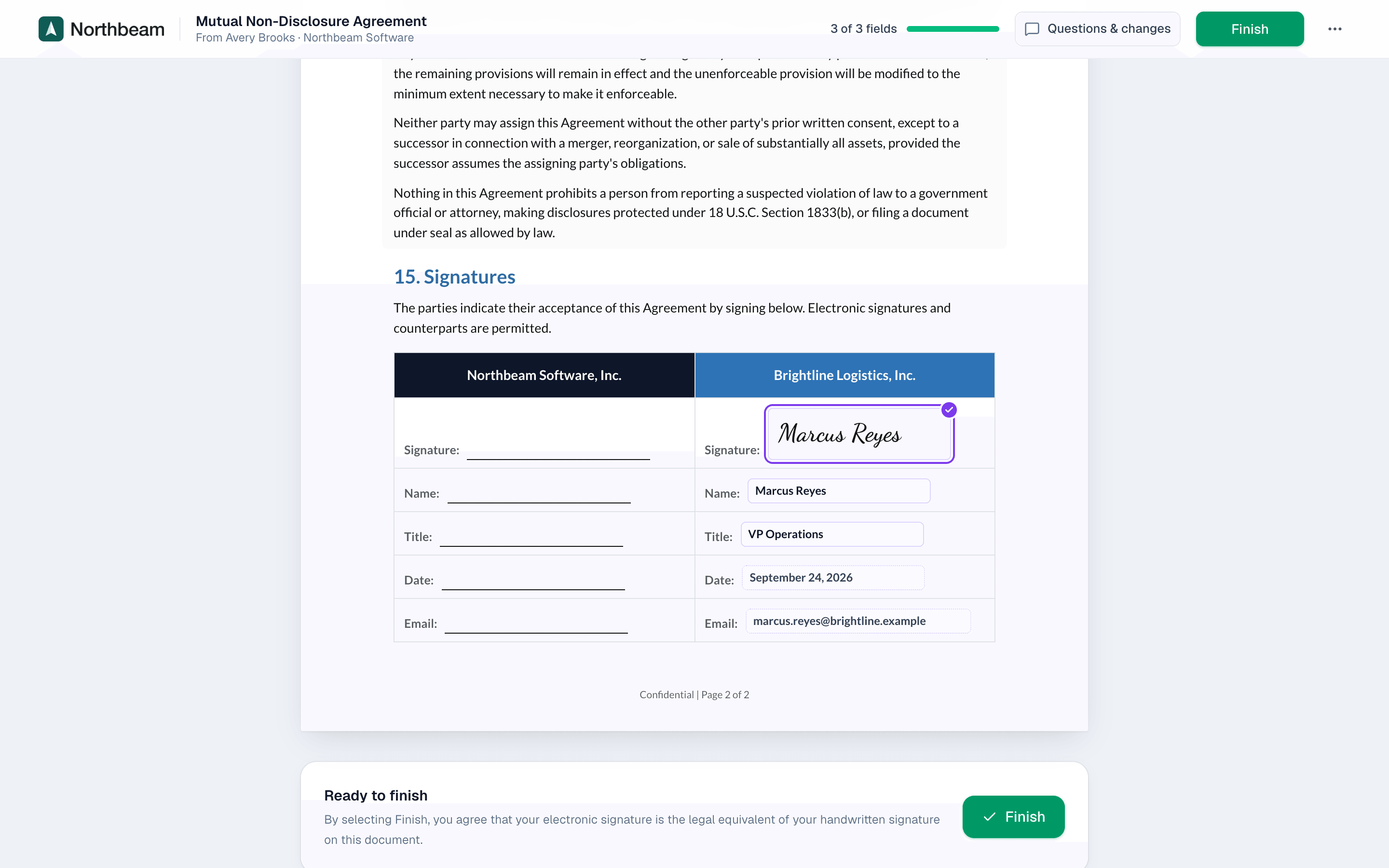
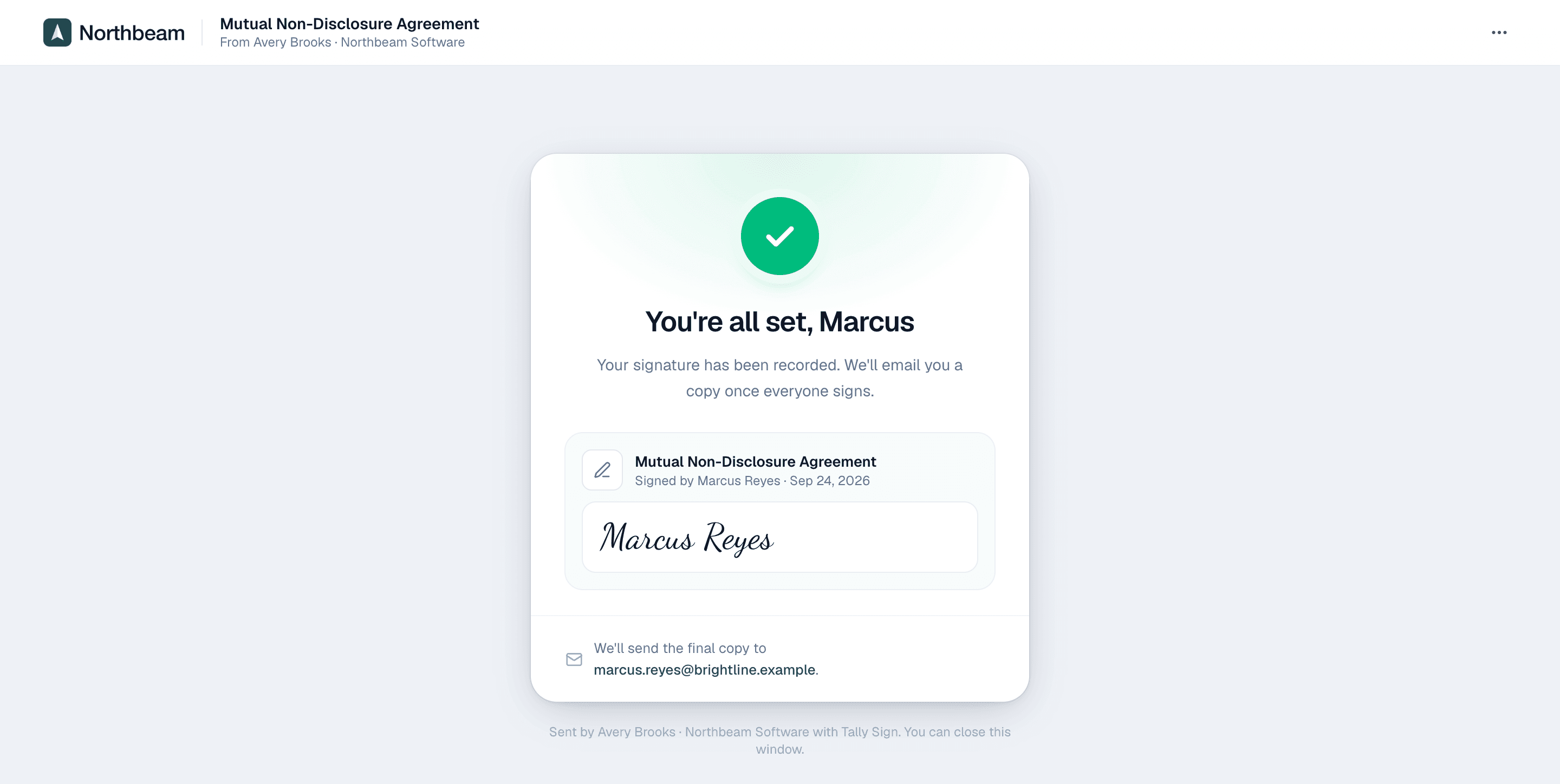
When every required field is done, the button changes to Finish. After finishing, the signer sees a confirmation and gets the signed PDF by email once everyone has signed.
On the website: No CRM needed·Pricing